Defining Audit Properties
You can specify certain information on the audit.
General characteristics
General characteristics of an audit are:
• Name: audit name
• Code: you can assign a code to the audit
• Included in Initial Plan: this attribute is defined automatically according to audit plan status at the time of creation. It indicates if the audit was present at audit plan creation, or if it was added later.
• Lead Auditor: name of lead auditor
• Main Auditee: you can select a manager from the list of auditees attached to the audit.
• Objective of the audit
• Category of the audit:
• "Compliance"
• "Efficiency"
• Status: this attribute is defined automatically and modified at workflow transitions.
• Follow-up audit : this field is checked automatically in the case of follow-up audits (not changeable). When it is checked, it is followed by the Followed Audit Year.
Justification and workload
In this section you can enter the following attributes:
• Justification of the audit
• Origin: follow-up, ad-hoc, recurrent, etc.
• Priority: priorities can be specified for audits. You can select audits to be integrated in the audit plan based on this priority criterion.
• Estimated Duration (days).
• Estimated Number of Resources
• Estimated Workload
 The following characteristics are automatically calculated:
• Effective Workload (Hours): calculated from the effective workload defined on time sheets or on activities if no time sheet has been entered.
• Estimated Number of Resources
Audit scope
In the Scope you can connect objects to which the audit is attached, such as an org-unit, process, etc.
To specify audit scope:
1. Expand the Scope section.
2. Select the object type to be created or connected to the audit.
3. Click New to associate new objects, or Connect to connect existing objects to the audit.
Risks treated by audit
The risks specified in audit scope are risks identified prior to audit execution and to which the audit relates. These risks can be of a type defined by the administrator.
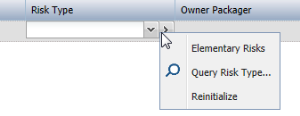
To define the type of a risk:
1. In the Scope section, select the risk in question.
2. Click in the Risk Type column associated with the risk.
3. Click the arrow on the right of the column header to find the required risk type.
A report indicates if audits in progress or past audits treat the risks entered by the administrator. Viewing the audit coverage report.
These risks are differentiated from risks discovered during the audit, which can be associated with different audit elements (activity, finding, etc.) and are not necessarily of a previously identified type. See Defining and Assessing Risks.
You can assess a risk at precise moments, for example a pollution risk, by creating each time a new assessment measurement on the risk.
Milestones
In the Milestones section, you can indicate a Planned Begin Date and a Planned End Date. These dates constitute audit milestones.
If you enter dates that do not agree with those of the audit plan, an error message appears.You can choose to enter milestones at a later stage.Users
In the Users section, you can specify audit participants:
• Auditors: auditors having been previously defined, you can connect but not create auditors. See Assigning Auditors to Audits.
• Auditees: persons audited during the audit, who can be e-mail recipients or recommendation owners.
• Other participants: any other persons in the audit.
Skills
You can specify skills required by auditors to execute the audit.
To define skills required for the audit:
 In the Skills frame, click New or Connect to create a skill or connect an existing skill.
When assigning auditors to an audit, you will be able to compare skills of auditors and skills required for the audit. For more details on the report providing this information, see Assigning an auditor to an audit.
Summary
At Conclusion of the completed audit, you can indicate:
• Key Strengths
• Key Weaknesses
• Evaluation: good overall level, can be improved, etc.