Defining and Assessing Risks
Risks can be identified at different levels at audit execution. For example, in the framework of an audit on hardware purchase, a risk on requirement suitability may be identified, such as a bad technological choice.
We differentiate:
• risks discovered during the audit
• risks previously defined in the audit and activity scope.
 To define scope:
• of an audit, see Audit scope.
• of an activity, see Specifying risks connected to an audit activity.
Risks discovered during audit execution should be connected to the activity finding, or to the recommendation.
Displaying the risk list
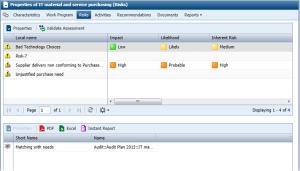
The Risks tab available on audit properties displays the list of risks associated with the audit, as well as risks associated with audit objects.
To determine with which object a risk is associated:
1. Open properties of the audit.
2. Select the Risks tab.
3. In the upper frame, select a risk in the list.
The lower frame displays the object with which it is associated.
Below, the "Bad Technology Choices" risk is connected to the "Matching with needs" activity.
Assessing a Risk
To assess a risk:
1. Open properties of the audit.
2. Select the Risks tab.
3. Select the risk and click Property.
The properties dialog box of the risk appears.
4. Select Assessment.
5. In the wizard that appears, select nodes to be assessed.
 An assessment node comprises:
• an object to assess
• one or several context objects (entities and processes), if necessary
6. Click Next.
You can now select values that characterize this risk (contextualized) in terms of:
• Impact: impact of the risk when it occurs
• Likelihood: probability that the risk will appear
• Control level
Control Level: characterizes efficiency level of control elements deployed (controls) to assess the risk.7. Specify the assessment date.
8. Click OK.
An assessment is created.
The following values are calculated:
• gross risk
The inherent (or gross) risk indicates the risk to which the organization is exposed in the absence of measures taken to modify the occurrence likelihood or impact of this risk. This is the result of multiplying impact value and probability value before taking account of risk prevention or reduction measures.• net risk
The residual (or net) risk indicates the risk to which the organization remains exposed after management has processed the risk. is the difference between the Inherent Risk and the Control Level.9. Click the Validate Assessment button.
Assessment validation enables you to view results in the risk map. Validation can take a while, therefore the wizard offers to execute this process later if needed.Generating the risk map (HeatMap)
A report enables you to view the map of risks associated with an audit, depending on their assessment criteria (Impact, Likelihood, etc.).
To view the risk map associated with an audit:
1. Open properties of the audit.
2. Select the Reporting tab, then HeatMaps.
The audit risk map appears.
The number of risks displayed depends on the number of contexts.