Assigning Auditors to Audits
Before assigning an auditor to an audit, you must view auditor availability and skills.
Viewing auditor availability by audit dates
To view auditors available with necessary skills for an audit:
1. Open the properties of the audit plan in question.
2. Select the Assign Resources tab.
By default, the report presents audits of the audit plan over the year. You can display those of a particular period.
 Campaign calendars delivered by default are by quarter, but the administrator can define others, by month or half-year for example.
3. In the table at top left, select an audit.
4. In the table at top right, select the auditor for whom you want to display skills and availability.
You can select several auditors.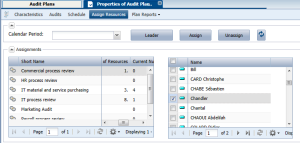
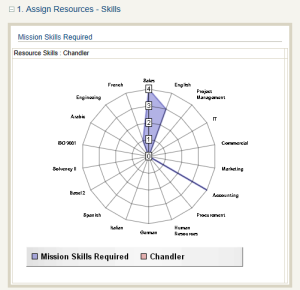
5. In the lower frame "Assign Resources - Skills", click the Refresh button  .
.
.The chart presents the skills required for the audit and the skills of the selected auditor.
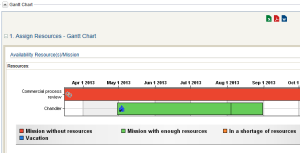
6. Similarly refresh the frame "Assign Resources - Gantt Chart".
A chart presents availability of the auditor on dates of the audit.
The color of the audit period depends on the number of auditors assigned to it related to the estimated number of users:
• Green if the audit has sufficient auditors
• Orange if auditors are insufficient
• Red if no auditors are assigned
Vacation periods of selected auditors are represented in color blue.
Assigning an auditor to an audit
To assign an auditor to an audit:
1. From the Assign Resources page, in the frame at top left, select the desired audit.
2. In the frame at top right, select a user.
3. Click the Assign button.
To remove an auditor from the audit, carry out a similar operation and click the Unassign button.To assign the lead auditor of an audit:
 Click the Lead Auditor button.