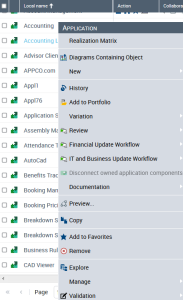
The Actions on an Object in a List
When you select an object in a list of objects, the actions that you can perform are available:
• in the menu bar of the list
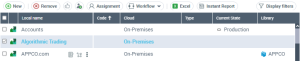
• in the Local Name column of the object
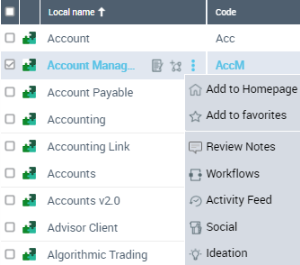
• in the contextual menu of the object
 When you select an object in a list, it is highlighted in bold blue.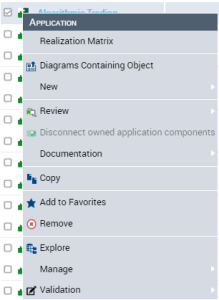
Actions on an object using the icon bar of a list
When you select an object in a list of objects, the icon bar of the list enables you to perform general actions on the object.
To access all the actions available on an object, see Pop-up menu for an object.Icon | Actions on the object | For more details, see: |
|---|---|---|
 | Delete the object from the HOPEX repository | |
 | Like the object | |
 | Follow the object to be informed of all the modifications performed on this object | |
 | Assign the object to a business role (certain desktops) | |
 | Access the object Workflows and launch a workflow transition on the object | |
 | Create an instant report on this object |
Click  to access hidden commands.
Actions on an object from the Local Name of a list
When you select an object in a list of objects, and then roll the mouse over its Local Name:
• a list of buttons enables you to perform current actions on the object
• a list of buttons gives direct access to the collaboration functionalities.
In HOPEX Explorer (tablet), these buttons are available in the Action and Collaboration columns of the list.Icon | Action on the object | For more details, see: |
|---|---|---|
 | Display the properties of the object in the edit area (Properties  window) window) | |
 | Create diagrams | |
 | Add the object to your home page | |
 | Add the object to your favorites | |
 | Open or preview the diagram(s) describing the object in the edit area (Navigation  window) window) | |
 | Open the diagram(s) containing the object in the edit area (Navigation  window) window) |
Icon | Action/Collaboration on an object | For more details, see: |
|---|---|---|
 | Access the Review Notes on the object | |
| Access the object Workflow page. | |
 | Access the Activity Feed of the object | |
 | Access the Social theme of the object | |
 | Access the management of ideas (Ideation) on the object |
Pop-up menu for an object
To access all the commands specific to an object using a list, click the icon of the object concerned.