Diagram Setup and Printing
Defining a diagram Setup
To specify a diagram setup:
1. Right-click the diagram to display its pop-up menu.
2. Click Diagram Setup.
The Diagram Setup window appears. It enables definition of:
• Paper size (A3, A4, A5... or indication of Width x Height in inches)
• Orientation (Portrait or Landscape)
• Number of pages (total size of diagram)
 You cannot reduce the size of a diagram if elements appear in deleted pages: all elements should be placed in pages that will be kept before reducing format (display of page boundaries simplifies this operation).
• Margins (in inches)
The Margins are superimposed on those defined by the printing device. This is done so that any information in these margins is not lost. 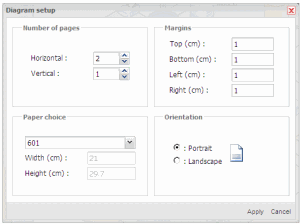
Diagram Setup window with Web Front-End.
Diagram Setup window with Windows Front-End.
You can also indicate a print Scaling percentage.
Printing Diagrams (Web Front-End)
Printing a diagram consists of generating a PDF format file, which you can then print.
To open the print dialog box:
1. Click Print.
2. In the Scaling frame, select Mode "Enlargement/Reduction" to enlarge or reduce a diagram when printing.
3. Enter the number of pages (width and height) on which you wish to print the diagram.
The Zoom value is modified as a result and previews the result of printing.4. Click OK.
The PDF export process begins.
Printing Diagrams (Windows Front-End)
The Print dialog box allows you to edit all or part of the diagram and to store it in a file to be printed later or to be printed from another computer.
To open the print dialog box:
 Select File > Print.
 The Print range dialog box includes the number of pages you specified in the Page Setup dialog box. By default, all the pages are selected.
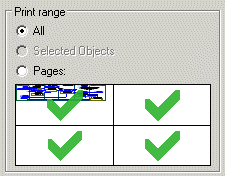
To deselect a page:
Click the page to be excluded from printing.The page is then marked with a red cross.
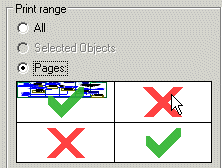
To print only certain diagram objects:
1. In the diagram, select the objects you wish to print.
2. In the Print dialog box, Print Range frame, select Selected Objects.
3. Click OK.
Only those objects selected in the diagram are printed.
To select a deselected page:
Click the page marked with a red cross.The red cross changes to a green tick.
To print multiple copies:
Indicate the Number of Copies required.When several copies are printed, to sort these by page number:
Select Collate.To write print commands in a file:
Select the Print to File option.This allows physical printing of the diagram from another workstation. A dialog box appears asking for the name and location of the file.
To print the status indicators present in the diagram:
1. Check that the status indicators appear in the diagram.
2. In the Print dialog box, select the Print State Indicators check box.
For more details on display of state indicators in a diagram, see Object status indicators.To enlarge or reduce a diagram when printing:
1. In the Scaling frame, select "Enlargement/Reduction" Mode.
2. Enter the number of pages (width and height) on which you wish to print the diagram.
 The Zoom value is modified as a result and previews the result of printing.
To adapt printing of the diagram to fit the format of your paper:
In the Scaling frame, select "Fit the Paper" Mode.This mode allows you to make best use of the space provided by a large format page. In these conditions, the entire diagram can be adapted to a single page, which is not the case in this mode.
 With Fit the Paper mode, indications defined in Page Setup concerning paper size and number of pages are ignored.