The Search by Object Type
 If your repository is indexed, you can perform a full-text search; see The Full-text Search.
Accessing the search by object type
You can access the search by object type from:
• the toolbar on your HOPEX desktop.
• the properties page of an object to connect objects
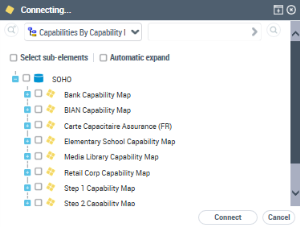
Searching for an object type
The search by object type bar includes two fields:
• The Select an object type field to list all objects of the same type.
If you are in expert metamodel access mode, you can choose to extend or restrict object types searched; see Extending/Restricting the object types queried.• The Find object field if you want to refine the search by adding a string of characters to be searched for.
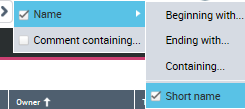
You can perform the character string search on:
• the object name (by default its short name).
To perform a search on the long name of the object: deselect Short Name
You can define the location of the character string:
• at the start (by default) (Beginning with)
• at the end (Ending with)
• without specifying (Containing).
• the object comment (Comment containing).
• the object name and its comment.
To perform a search on an object type:
1. In your HOPEX desktop, in the search by object type bar, in the Select an object type drop-down list, select an object type.
Example: Application
2. (If necessary) To refine your search:
• In the Find object field, enter the character string to be searched for.
Eg.: management
By default, the search deals with the objects of the selected type and whose short name starts with the character string entered.• (If necessary) In the Find object drop-down list, modify the search definition.
Eg.: the applications whose short name contains "management".
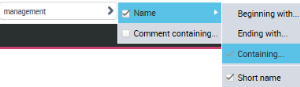
3. Click Find  .
.
.The objects listed appear in the results window.
You can export the list in Excel formatYou can launch an instant report from the list, see "Launching an instant report from a list", page 376.