Managing Action Plans and Actions
An action plan comprises a series of actions, its objective being to reduce risks and events that have a negative impact on company activities.
Overview of action plans
Two types of workflows are available for action plans:
• top-down
• bottom-up
The actions that you can perform using the contributor desktop depend on the solution that you are using and the workflow implemented in your enterprise.
|
Business function
|
Detailed documentation
|
|---|---|
|
Compliance
|
|
|
Internal Control
|
Context for action plan creation
As a contributor, you may have to create an action plan, under different contexts, for example:
• In the "bottom-up" approach, you can create an action plan when you answer a requirement questionnaire.
 You can submit it via the workflow so an approver can validate it.
• An auditor may detect an issue and asks you to create an action plan in order to remediate it.
In this case you need to connect the issue to the action plan.Accessing action plans
To access action plans:
2. In the home page, click on My Action Plans.
You can also access action plans from the To-Do List > My Action Plans menu.Creating action plans
To create an action plan:
1. See Accessing action plans.
2. In the page that appears, click Edit.
You can now access the buttons used to modify the repository.
3. Click New.
To return to navigation mode, click Navigate .Connecting an issue to an action plan
To connect an issue to an action plan:
1. See Accessing action plans.
2. In the line corresponding to the action plan, click the Properties button.
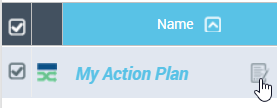
3. In the action plan property page, click Edit.
4. Expand the Scope section and select the Isues tab.
5. Click Connect.
You can also create an issue if needed.Indicating action plan progress
You must indicate the progress statuses for your action plan. To do this, you can create states regularly.
To indicate progress:
1. See Accessing action plans.
2. Click on an action plan to open its properties window.
3. In the properties pages bar, click Edit  .
.
.4. Expand the Action Plan Progress section, and in the Progress Update frame, click New.
5. Specify a Progress Update Percentage.
6. Specify the progress Evaluation.
You can specify whether the action plan is:
• on time, or
• delayed
Managing actions
Within the context of the internal audit or testing activities, you may, as a manager or action correspondent, be required to:
• specify the actions to take to ensure recommendation follow-up
• ensure actions are correctly implemented
To access your actions:
2. In your Explorer desktop, click To-Do List > My actions.