Managing Drawing Objects
Described here are the operations you can execute on drawing objects in HOPEX.
Creating Drawing Objects
To create a basic drawing object (square, circle, polygon, etc.) :
1. Select the type of element using button

.

An icon follows the mouse pointer, indicating the type of drawing object selected. This icon resembles the icon on the button in the drawing objects toolbar

2. Click at the location where you want to anchor one of the angles of the drawing object.
3. Holding the mouse button down, drag the mouse to where you want the opposite angle to be:
4. Release the mouse button.
The handles around a drawing object indicate that it is selected.
After the drawing object is created, the pointer returns to its usual shape. You can now select and move elements.
Tips for creating drawing objects
To create several drawing objects of the same type without having to select the type each time:

Click
then double-click the required type of drawing object.
The type remains selected until you press the <Esc> key.
To create a drawing object with height equal to width (circle, square, etc.):
Hold the <Shift> key down while moving the mouse.
To create a drawing object based on its center:
Hold down the <Ctrl> key while dragging the mouse.
Hold down the <Shift> and <Ctrl> keys to create a regular geometric shape for the object, based on its central point.
Selecting Drawing Objects
After you create a drawing object, you can modify it (size, colors, etc.), duplicate it, move it, align it with another drawing object and change how it is displayed on the screen.
To modify an element, it is first necessary to select it.
Selecting an element
To select an element:
Position the pointer on the element and click.
If a drawing object type is already selected, press the <Esc> key, or select the pointer button in the toolbar.
The element is surrounded by small squares called “handles”. These handles allow you to modify dimensions of the element.
If the drawing object selected is a line or a link, then small squares or “joints” mark the end of each section (see
"Handling Lines").
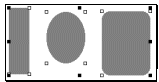
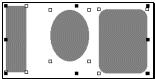
To select several elements at the same time, drag the mouse to enclose the drawing objects in a selection rectangle:
1. Move the mouse holding the button down.
A rectangle appears. One of the angles of this rectangle is where you first pressed the mouse button, and the opposite angle is where the pointer is presently.
2. Release the mouse button.
Note that the drawing objects have to be completely enclosed by the rectangle in order to be selected.
If you have only partially enclosed a drawing object, it will not be selected. Therefore, a group of drawing objects or a shape whose elements are not close to each other, would not be selected even if it was apparently part of the selection.
Drawing object selection shortcuts
You can select several drawing objects by holding down the <Shift> key while clicking on each drawing object.
When several drawing objects are selected, you can deselect one or more of them by holding down the <Shift> key and clicking on them.
To select all of the objects in the diagram:
Simultaneously press keys <Ctrl> and <A>.
Cutting, Copying, Pasting, Deleting and Duplicating Drawing Objects
These menu commands of the drawing object pop-up menu enable deletion, moving one or several diagram elements.
Cut
Select Cut to delete the selected drawing objects and to place them on the clipboard (the previous clipboard contents are overwritten).
Only graphical drawing objects and links are actually deleted when you use the
Cut command. If you delete element, they are no longer displayed in the diagram, but they still exist in the repository.
Copy
Select Copy to put your selection on the clipboard (the previous clipboard contents are overwritten).
Paste
Select Paste to put the contents of the clipboard in the diagram at the position you clicked last. Note that the clipboard is not emptied and you can repaste its contents multiple times.
Clear
Select Clear to delete your selection from the diagram. This command does not affect the clipboard contents.
Duplicating
Select Duplicate to copy your selection and place it next to the original.
This function is available with
HOPEX Windows Front-End only.
To duplicate you can also:
• Hold down the <Ctrl> key and select the drawing object(s) you want to duplicate.
• Keep the <Ctrl> key down and drag the selection to the place in the diagram where you want the duplicate to be.
• Release the mouse button, then the <Ctrl> key.
The selection is still at its original location, but its copy is placed where you dragged it.
Aligning Drawing Objects
To align drawing objects:
1. Select the objects to be aligned, holding the <Ctrl> key down.
2. Click the arrow at the extreme right of the Align button.
3. Select an alignment mode in the list proposed.
Alignment by selection rectangle
When you select elements using a rectangle traced with the mouse, the commands Top (Bottom, Right, Left) align the selection on the top edge of the highest element (or bottom, right, left).
Centering is on the vertical or horizontal median.
You must then select the reference element by clicking it while holding down the <Shift> key.
Alignment by successive clicks
When you successively select elements with <Shift> key held down, the last element selected serves as reference: the selection is aligned on the top (bottom, right, left) edge of the element.
Centering is with respect to the last element selected.
Alignment on the grid
Note that the size of objects created without a grid or using a finer grid is modified to become a multiple of grid spacing (the object is either slightly enlarged or reduced to minimize modifications).
Spacing the Elements
To equally space selected drawing objects:
1. Select the drawing objects by holding down the <Shift> key and clicking on them.
2. Right-click the object selection and select a command from the Space sub-menu according to the direction required.
So that these commands are available, it is necessary to select at least three elements.
Using the commands Space > Horizontally and Vertically, the space between the three drawing objects becomes identical.
Using the commands Space Horizontal Centers or Vertical Centers, the distance between centers of the three drawing objects becomes identical.
Bringing Objects to Front/Sending Them to Back
If you place several drawing objects at the same location, they will be superimposed. Drawing objects cover each other in the order you create them: the latest created drawing object covers the previous one. You can modify this order.
To put an object behind another:
1. Select the drawing object(s).
2. In the drawing object pop-up menu, select Order > Bring forward or Order > Send backward.
To put a drawing object in front of all the others:
In the
Edit toolbar, click

.
To put a drawing object behind all the others:
In the
Edit toolbar, click

.
In this way the drawing objects can be completely reordered by successively applying these various commands.
Resizing Objects
To modify the dimensions of an object:
1. Select the object concerned.
2. Point to a handle.
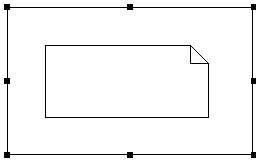
The pointer shape changes to a double-headed arrow. The direction of the arrow indicates whether you can resize the drawing object horizontally, vertically, or both:

3. Hold the mouse button down: a selection rectangle appears around the drawing object.
4. Drag the mouse.
The rectangle indicates the new size of the object.
5. Release the mouse button when the desired dimensions are obtained.
Shortcuts concerning resizing
You can change both the height and width of a drawing object proportionally:
By holding down the <Shift> key and dragging one of the handles at a corner of the object.
To create a drawing object based on its center:
Hold down the <Ctrl> key while dragging the mouse.
These shortcuts exist in
HOPEX Windows Front-End only.
Resizing drawing objects to the size of another object
To resize one or more drawing objects to the size of a reference object:
1. Select objects to be resized.
2. Select the reference object by holding down the <Shift> key and clicking it.
3. In the pop-up menu, select the desired option of Make Same Size: Height, Width, Both (height and width).
The drawing objects now have the same height and/or width as the reference object.
Moving Objects
To move an object or a group of objects:
1. Select them.
2. Click an object in the selection, avoiding a handle.
3. Holding the mouse button down, drag the selection to the desired location, then release the mouse button.
When the grid is enabled (see
"Using the Grid"), the drawing objects you move are automatically aligned with the grid.
If you move the drawing object beyond the current diagram area, the diagram area automatically scrolls to keep it in view. Note that you cannot move elements outside a diagram.
Moving nested elements
When a drawing object is contained within another graphic element, there are two possibilities:
• Move the two elements together.
• Move only one of the two elements.
To move the two elements together:
Click the element that contains the other and move it.
The second element will follow.
To move the containing element without moving the contained element:
Move the containing element holding down the <Shift> key.
This procedure can be useful in flowcharts (for example to move an org-unit with or without its attached operations).
Using the Grid
Showing the grid
To show the grid:
1. Right-click the workspace and select Grid.
2. In the dialog box that opens, select Show grid.
The fact that the grid is shown does not mean that it is active. To activate the grid, the
Snap objects to grid option must be selected.
Activating the grid
When the grid is activated, the drawing objects you create are automatically aligned to the grid lines. The size of drawing objects is a multiple of grid spacing. When you move drawing objects, they will move by increments equal to grid spacing.
To activate the grid:
1. Right-click the workspace and select Grid.
2. In the dialog box that opens, select Snap objects to grid.
Objects created before the grid is activated will now be aligned on the grid (it can be activated after the event).
The grid can be active even if it is not shown.
When you hold down the <Alt> key while manipulating objects, the grid is temporarily deactivated if previously activated, and vice-versa.
Modifying grid lines and spacing
You can configure grid display by modifying:
• Spacing of grid lines.
• Color of grid lines.