The Advanced Search (Web Front-End)
Advanced queries are searches carried out by means of queries, either:
• with the help of a wizard
• via a registered query
• by manual entry of query parameters

To execute searches in the form of queries, you must know the names of the object types handled, and be familiar with query syntax, see
"Query Syntax".
Accessing advanced query in HOPEX Web Front-End
You can access the advanced query tool through:
• the Main Menu > Advanced Query
• the property page of an object, in order to connect objects
Performing an advanced query with the wizard
With Wizard mode, you can execute more detailed queries. Details can relate to:
• object attributes and/or
• Object properties
To perform an advanced search with the search wizard:
1. Open the advanced query tool.
The advanced search tool appears.
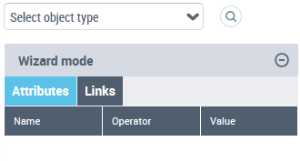
2. In the Select Object Type drop-down menu, select the object type to which your query relates.
3. Click the Wizard mode pane.
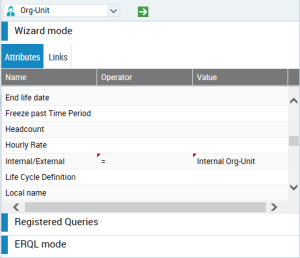
4. (Optional) In the Attributes tab, specify the operator and value defining the attribute to which the search relates:
• Click in the Operator field of the attribute to which the search relates and select the required operator.
Attributes in the drop-down list come directly from
HOPEX and exist in English only.
With the "Like" operator, the result contains the specified value,while with the "=" operator, the result is exactly the specified value.
• Click in the Value field of the attribute and enter the string to search for.
Each specified
Operator or
Value is highlighted by a small red triangle at top left of its cell.
5. (Optional) Configure another attribute, repeat step
4.
6. To include link conditions in your query, select the Links tab and specify the link characteristics to which the search relates.
• In the
Links tab, specify as in step
4 the
Operator and
Value fields of the link to which the query relates.
• (Optional) Configure another link, repeat step
6.
7. Click Find to run the query.
The list of results appears in the Results tab.
8. Select the object you want to consult.
Properties of the object appear in the read/edit area.
Performing an advanced search on a registered query
You can perform a query based on registered queries linked to an object, and run the query.
To perform an advanced query from a registered query:
1. Open the advanced query tool.
The advanced search tool appears.
2. In the Select Object Type drop-down menu, select the object type to which your query relates.
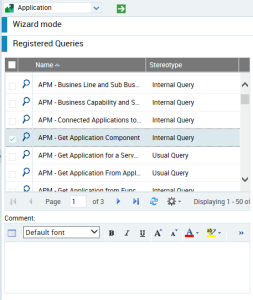
3. Click the Registered Queries pane.
The list of registered queries relating to the selected object appears.
4. Select the query you are interested in.
In the Comment tab, the comment associated with the query is displayed (if a comment exists).
5. Click
Find 
to run the query.
Performing an advanced search in ERQL mode
To perform an advanced search in ERQL mode:
1. Open the advanced query tool.
The advanced search tool appears.
2. In the query tool, click the Query tab.
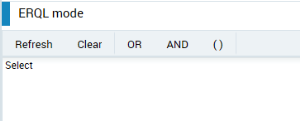
3. Click the ERQL mode pane.
4. Enter a query.
See
"Query Syntax".
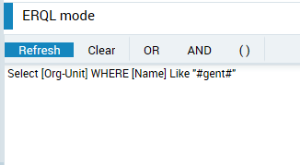
Example: "Select Org-Unit Where Name like "#agent#" finds org-units whose name contains agent.
5. Click
Find to launch the query.
The list of results appears in the Results tab.
6. Select the object you want to consult.
Properties of the object appear in the read/edit area.
To simplify data entry, you can build a query from properties selected in the wizard:
1. In the Select Object Type drop-down menu, select the object type to which your query relates.
2. Select the query parameters in the Wizard mode.
3. When you have selected your parameters, select the ERQL mode pane.
4. In the command bar of the
ERQL mode pane,
click

.
The syntax of the query appears.
5. Complete the syntax.
You can call help during query code build by pressing <Ctrl> + <Space>. An “Intelissense” window appears, in which you can select object types to help you build code.
6. Click
Find to run the query.
The list of results appears in the Results tab.
7. Select the object you want to consult.
Properties of the object appear in the read/edit area.