Creating Reports (Explorer (RW) specific)

When you have created a report in
HOPEX Explorer, this report is not saved. You must recreate it if you want to access it later.
Accessing reports available on an object
On each repository object you can display:
• the list of report templates relating to the object, from which you can create new reports.
• any existing reports.
To access report templates and reports available on an object:
1. Open the properties pages of the object to which the report relates.
Example: an Application.
2. Click the icon of the object at the left of the different menus and select Documentation > Report Discovery.
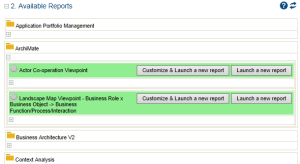
The list of report templates is displayed in the edit area. They are classified by folders corresponding to different categories.
3. Click

under the folder to view the proposed report templates.
Example of report templates available on an application
Report templates can contain one or several parameters. Certain parameters are defined automatically with the value of the selected object. Other parameters must be specified. Depending on the report template, you can:
• directly launch the report
• modify default values and launch the report
• enter missing parameters and launch the report.
Launching a report
To launch a report:
1. Access the reports available for the object.
2. If your report template includes only one required parameter, this parameter is automatically entered with the selected object. You can either:
• launch the report directly (click Launch a new report)
The report is displayed in the edit area.
• modify parameter data to customize the report before launching it (click Customize & Launch a new report).
If your report template includes several mandatory parameters, you must complete the report before launching it (click Complete).
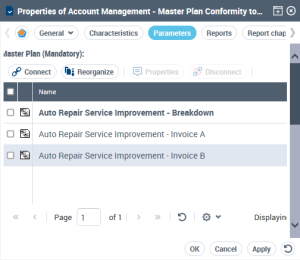
3. (optional) When you complete or modify parameters before launching the report, the report Properties window appears.
The Parameters page enables definition of report input data.
The parameters define the object groups and their relationship setting in the report. They vary depending on the report template.
4. Click OK.
The report results appear in the edit area.
Report chapters that appear vary according to the report template.

Click the chapter titles to open them.