Adding Favorites
To add an object to your favorites:
1. Access the Properties pages of the object.
2. From the Properties of the object, click the icon of the object and select Add to Favorites.
The selected object is added to your list of favorites.
Accessing Favorites
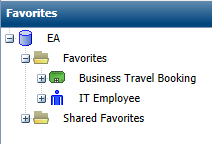
From the Favorites navigation pane, you can access your own favorites and shared favorites.
To access a favorite:
1. Select the Favorites navigation pane.
2. Expand the My Favorites or Shared Favorites folder.
3. Click the favorite you want to consult.
The Properties page of the favorite appear in the edit area.
Removing an object from favorites
You can remove an object from favorites.
To remove an object from favorites:
1. Access the favorite.
2. Right-click the favorite you want to remove from the list and select Disconnect.
The object is removed from the list of favorites.
 To consult your favorites, see "Accessing Favorites".