Building the business capability map
The business capability map represents the main business capabilities that interact with an enterprise plan.
Creating a business capability map
To create a business capability map:
1. From the Vision navigation pane, select Inventories > Business Capability Maps.
The list of business capability maps appears in the edit area.

You can also access the list of capabilities using the
Business architecture >
Inventories > Business Capability Maps navigation pane.
2. Click New.
The new business capability map appears in the list. By default it is owned by the current enterprise plan.
The properties of a business capability map
The Characteristicsproperty page of the business capability map provides access to:
• its Owner, by default during creation of the business capability map, this is the current enterprise plan.
• its Name,
• the text of its Description.
With HOPEX Business Architecture, a business capability map is described by the following pages:
• the Structure page is used to specify on the one hand the list of business capability components that constitute the business capability map described, and on the other hand, the dependencies between these components,
• The Implementation page provides access to the list of business architectures or solution building blocks that implement the capability map.
• The Usage page provides access to the enterprise stages that use the capability map.

An exhibited business capability is measurable objectively within the framework of an enterprise stage, on a defined geopolitical scope (site), and focused on a given market segment (business partner).
Creating a business capability map diagram
To create a business capability map diagram:

Right-click the business capability map that interests you and select
New > Business Capability Map Diagram.
The diagram opens in the edit area. The frame of the business capability map described appears in the diagram.
Using the capability compositions
The components represented in a business capability map diagram are Capability Compositions. Each capability composition is associated with a business capability.
A
Capability Composition is the involvement of a business capability in the context of a business capability map (one and only one) linked to an enterprise plan.
To add a capability composition to a business capability map diagram:
1. In the diagram insert toolbar, click Capability Composition.
2. Click in the frame of the business capability map.
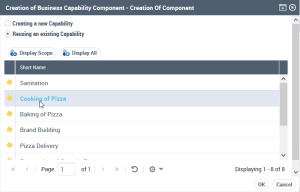
The creation window for a capability composition opens.
3. Click, for example, Reusing an existing Business Capability.
4. Click Display scope to limit the list of business capabilities to those in the scope of the enterprise plan.
5. Select the business capability that interests you.
6. Click OK.
The capability composition appears in the diagram.
Defining business capability assemblies
A dependency link between one capability composition and another is used to specify the elements on which this dependency is based.
For example, for "Delivery of pizzas" one must first "Prepare the pizzas". Note that the expected result (business effect) of "Delivery of pizzas" is a "Pizza delivered" and the expected result (business effect) of "Preparation of pizzas" is a "Cooked pizza"
To create dependency links between two capability compositions:
1. In the insert toolbar, click Business Capability Dependency.
2. Click the user component, and keeping the left mouse button pressed, move the cursor to the assembly used.
3. Release the mouse button.
The creation window for a business capability dependency opens.
4. Enter the user component result in the Dependent Business Effect field.
For example, "Pizza delivered".
5. Enter the user assembly result in the Desired Business Effect field.
For example, "Pizza cooked".
6. Click OK.
The link appears in the diagram.
A single capability composition can have more than one dependency within a single diagram.