Windows Authentication
Synchronization with a company directory
Active Directory is a directory service designed principally for Windows environments.
Active Directory is a directory referencing persons (name, first name, telephone number, etc) and objects such as servers, printers, applications, databases, etc.
Active Directory enables inventory of all information concerning the network (users, machines and applications). Active Directory is at the heart of all network architecture and its purpose is to enable users to find and access any resource identified by the service.
Active Directory is based on standards DNS, LDAP, Kerberos, etc.
Associating a Windows user with a MEGA user manually
You can connect a single MEGA user to a Windows user.
Windows Front-End
To indicate the Windows identifier of a MEGA user from the Administration application (Windows Front-End):
1. Open the properties dialog box of the user login.
2. Select the Characteristics tab.
3. In the Authentication Mode field drop-down list, select "Windows".
The Windows Login field appears.
4. In the
Windows Login drop-down list

, select
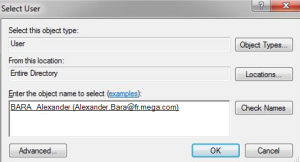
Select Windows User.
The Select User dialog box opens.
5. In the Enter the object name to select frame, enter the user name.

To find users with the help of a wizard, click
Advanced.
6. Click Check Names.
7. Click OK.
The Windows identifier of the user is displayed.
Web Front-End
To indicate the Windows identifier of a MEGA user from the Administration desktop (Web Front-End):
1. Access the Login properties of the user.
2. Select the Characteristics tab.
3. In the Authentication Mode field drop-down list, select "Windows".
The Windows Login field appears.
4. In the Windows Login field, enter the user reference in the Active Directory in the following format: Domain name\User login:
Example: Domain01\TAD
5. Click Save.
The domain name disappears from the field and only the user login is displayed (in lower caps).
Example: tad
Connection in case of unique authentication
(Windows Front-End) If the MEGA user is:
• different from that identified by the Windows session opened on the workstation, the user must enter his/her own Windows password.
• the same as that identified by Windows session opened on the workstation, the user does not need to enter his/her password.
(Web Front-End) The user must enter his/her Windows password.
Single sign-on precautions
A system repository in which all users have been changed to Single Sign On connection mode (Windows) can no longer be opened outside the company in which the repository was created.
If you want the repository to be opened outside your company (by the MEGA technical support team for example), ensure that at least one user remains in MEGA authentication mode.
 See "Viewing Login Characteristics".