Reinitializing Your Password
If you have lost your password, you can reinitialize it (MEGA authentication case).
To reinitialize your password:
1. Open the connection page.
2. Under the connection dialog box, click
 .
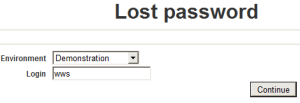
. The Lost password page appears.
3. In the Environment field, select your work environment.

If you have access to only one environment, this is automatically selected and this field does not appear.
4. In the Login field, enter your login.
5. Click Continue.
6. Answer the security question.
7. Click Reinitialize.
An e-mail containing a link with limited validity period is sent to you.
8. Click this link.
The Modify Password page appears.
9. Enter your password and answer the security question.
10. Click Apply.