Exporting a Report
Exporting reports in RTF or PDF format
To export a report in RTF or PDF format:
1. Access the report.
2. Right-click the report and select Open As > RTF or PDF to generate the report in RTF or PDF format.
The report opens in MS-Word or Adobe Acrobat.
To export a report in RTF or PDF format from the report result:
1. Launch the report.
2. Click the required export format: RTF  or PDF
  .
. The report opens in MS-Word or Adobe Acrobat.
Exporting report results to Excel
You can export certain report data in Excel format.
This feature is available for Java report chapters and does not apply to VB or VBScript reports.

For more details on macros, see
HOPEX Studio - Report Studio documentation.
Exporting reports
To export report results in Excel format:
1. Access the report.
2. Right-click the report and select Open as > Excel.
The generated file displays an Excel sheet per set of data (e.g.: table, tree, diagram), carrying the name of the set if it has one, or by default the name of the current report chapter followed by a number (beginning at 1).
Exporting a report or a report chapter
When a report chapter can be exported in Excel format, the
Excel button

appears to the right of the chapter title.
To export report data or report chapter data in Excel format:
1. Access the report.
2. From the report result, click Excel 
at report title or chapter level
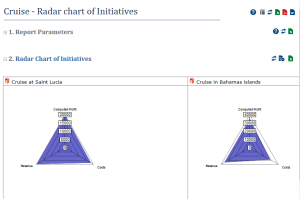
For example a report of "Radar Chart of Initiatives" type analyzes each portfolio initiative according to a set of criteria.
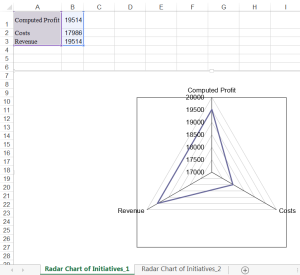
The Excel file opens. It contains:
• for each input parameter, a specific sheet that lists the objects used as input.
E.g.: a sheet for the input objects of the first parameter: criteria.
E.g.: a sheet for input objects of the second parameter: initiatives.
• a specific sheet by graphic.
E.g.: a sheet for the radar chart of each initiative.
Excel export limits
Certain charts such as the Gantt chart are not supported.
Views of over three dimensions are not processed.