Creating a Report in a MEGA Solution.
Some reports require that you enter parameters.
E.g.: the risk identification report.
To create a report:
1. Connect to the MEGA solution.
2. Select the Reports tab.
Available reports are classified by category.
3. In the navigation tree, select a report.
4. In the edit area, click
New 
.
The Properties page of the new report appears in a new tab.
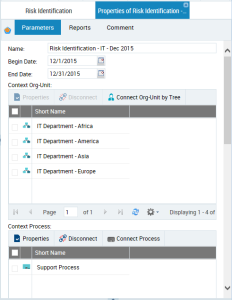
5. In the Parameters tab, enter the report Name and specify the report parameters.
This consists in defining report input data, which constitute the analysis scope.

The parameters define the object groups and their relationship setting in the report. They vary depending on the report template. A parameter value can group several objects.
E.g.: with the risk identification report you can presents distribution of risks according to several criteria: by process, by risk type, by entity and by objective.
6. Click Reports to display the result.
Report chapters vary depending on the selected report type.
The report is automatically saved in the Reports > Other Reports > My Reports folder.
7. Click the chapter titles to open them.
Refreshing report contents
If the described object is modified, the report is updated when next opened.
To update an existing report:

Click the refresh button

:
Converting a report in PDF, RTF, or Excel format
When you open a report, this appears in an HTML page.
You can export report data or report chapter data in RTF

, PDF

, Excel

format.
To export the report content:
1. Access the report.
2. From the report result, click the required export format to the right of the report title or report chapter title.
The first time you open a separate window, your navigator may request authorization to open unexpected windows. If this is the case, accept.
Sharing a report as a Widget
You can save a report as a widget to make it available for your dashboard, and for those of other users.
To save a report as a Widget:
1. Access the report.
2. In the report result page, click
Share as Widget 
.
The report creation dialog box appears. It indicates the report description.
3. In the Create Report page, enter the report Name.
4. Click Next.
The Parameters window displays parameters already specified, as well as additional formatting parameters.
5. (Optional) In the Parameters page, specify the input parameters of the report.
6. Click Next.
The Report chapters window displays the report chapters that you can modify.
7. (Optional) In the Report Chapters window, select Open Automatically to expand the chapter automatically when it opens or when the report is refreshed.
8. Click OK.
The report is added to the list of widgets available to populate dashboards.
All users can use your report as a widget.
 button to modify the setup of the generated PDF file. For more details, see "Customizing the Page Setup of the Report in .pdf Format".