Defining a Terminology
A new context of use of Hopex concepts is defined by all the set of new terms to be used. These terms can be defined in several languages.
 A Terminology is a set of terms used in a specific context instead of the names used in basic configuration. This context can be a modeling standard (e.g.: Archimate, TOGAF), the vocabulary used in a specific field (e.g.: audit, internal control) or specific to the company.
 For more details on the list of concepts that you can rename, see Renaming Concepts.
Some terms can be specific to a population of users. You can connect a user profile to one or several Terminologies ordered by priority.
For more details regarding profiles connected to several Terminologies, see Managing Profiles Associated with Several Terminologies.Some standards define pictures associated with their concepts. The renaming mechanism implemented in Hopex enables association of MetaPictures with a terminology.
For more details on the use of MetaPictures, see Defining a shape for the new MetaClass.For more details on how to associate MetaPictures with a terminology, see Connecting MetaPictures of concepts.To define a Terminology:
1. Connect to Hopex with the Hopex Customizer profile.
2. Create a Terminology.
3. Create all the languages you need for the Terminology and associate each of them with the Terminology.
4. Configure the Terminology:
• specify the profiles associated with the Terminology
• (optional) specify the concept MetaPictures for the Terminology
5. From HOPEX Administration, translate and compile the Metamodel (you do not need to compile the technical data).
For details on the translation and compilation, see Hopex Power Supervisor guide, chapter "Compiling an environment".6. Define the terms associated with your Terminology.
7. From HOPEX Administration, translate and compile the Metamodel (Technical Data and Metamodel).
For details on the translation and compilation, see Hopex Power Supervisor guide, chapter Compiling an environment.Creating a Terminology
To create a Terminology:
1. Connect to Hopex with the MEGA Customizer profile.
2. In the MetaStudio navigation window, right-click the Terminology folder and select New > Terminology.
3. Enter the terminology Name.
For example: My Galaxy.
4. Click OK.
The Terminology is created.
If you want your Terminology to inherits from another Terminology see Inheriting a Terminology.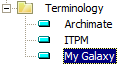
Inheriting a Terminology
A Terminology can inherit from another one. Connected to the inherited Terminology, the inheriting Terminology inherits:
• languages
• MetaPictures
• terms given to the different concepts in the different languages
See Renaming Concepts.To connect an inherited Terminology:
1. Explore the Terminology you want to be inheriting from another Terminology.
For example explore "My Galaxy" Terminology.2. In the Explore tool, click Empty Collections  .
.
.3. Right-click the Inherited Terminology folder and select Connect.
4. In the Terminology list, select the Terminology you want your terminology to inherit from and click Connect.
For example if you select "Archimate" Terminology, "My Galaxy" Terminology inherits languages, MetaPictures, and terms from "Archimate" Terminology.
Creating a language for a Terminology
To configure your Terminology you need to create the languages you want to be available for your Terminology and associate each language with the Terminology.
You can create as many languages as you need for your Terminology.To create a language for a Terminology:
1. In the MetaStudio navigation window, expand the Language folder.
2. Expand the language you want to be available for the Terminology.
For example English.
3. Right-click the Specialized Language folder and select New > Specialized Language.
The Creation of Language dialog box opens.
4. In the Name field enter your language name.
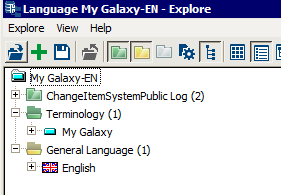
For example "My Galaxy-EN".
5. Right-click the language and select Explore.
6. In the Explore tool, click Empty Collections .
.7. Right-click the Terminology folder and select Connect.
8. In the Terminology list, select your Terminology and click Connect.
For example "My Galaxy".
Specifying all the profiles associated with a Terminology
For more details on definition of users and profiles, see Hopex Power Supervisor, chapter "Managing Users".To associate profiles with a Terminology:
1. From the MetaStudio navigation window, in the Terminology folder right-click the Terminology and select Explore.
An Explore window opens.
2. Right-click the _UserProfile folder and select Connect.
3. From the Connecting window, select all the profiles you want to associate with the Terminology and click Connect.
All the selected profiles are associated with the Terminology.
To add a profile to a Terminology see also Adding a Terminology to a profile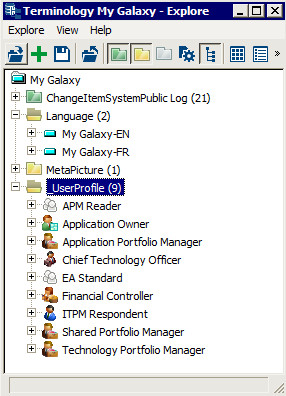
Connecting MetaPictures of concepts
Prerequisite: diagrams specific to the context to which the terminology relates are described and MetaPictures exist.
For more details on the use of MetaPictures, see Defining a shape for the new MetaClass.To connect a concept MetaPictures to a Terminology:
1. From the MetaStudio navigation window, in the Terminology folder right-click the Terminology and select Explore.
An Explore window opens.
2. Right-click the MetaPicture folder and select Connect.
3. From the Connecting window, in the MetaPicture list, select all the MetaPictures you want to connect to the Terminology and click Connect.