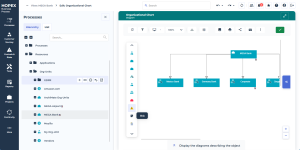
Customizing a Diagram Type
 For detailed information on how to create and customize diagrams, see Customizing Diagrams > Configuring Diagrams documentation.
You can override a Diagram Type, for example its:
• DiagramTypeObject
• DiagramTypeParam
• DiagramTypeView
Adding an object type to a diagram type
For example, to make the Risk object available in the Organizational Chart diagram type:
- Connect the "Risk" DiagramTypeObject to the "Organizational Chart" DiagramTypeParam
by overriding the DiagramTypeObject link of the "Organizational Chart" DiagramTypeParam.
- Connect the "Risk" DiagramTypeObject to the "OC Org-Units" DiagramTypeView
by overriding the DiagramTypeObject link of the "OC Org-Units" DiagramTypeView.
These configurations follow the Overriding multiple object links.
To override a Diagram Type:
1. Access HOPEX Studio desktop (with Hopex Customizer profile).

2. Access and expand the DiagramType concerned.
Example: from the Diagram Types > Structure & Organization DiagramType folder, expand the "Organizational Chart" DiagramType.
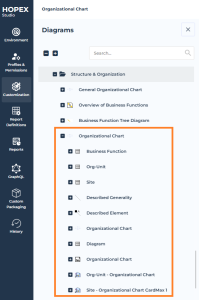
3. Hover the cursor over the "Organizational Chart" DiagramTypeParam to display its property pages.
4. In its Override Configuration page, select Overridden for DiagramTypeObject.
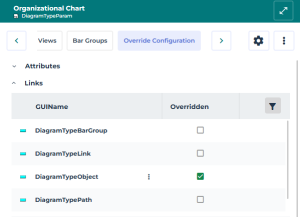
5. Display the MetaClass page and click Connect to add the "BPMNxP Risk" DiagramTypeObject to the DiagramTypeParam.
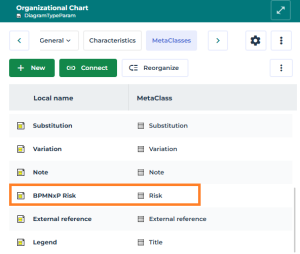
The DiagramTypeObject is added to the DiagramTypeParam.
6. Display the Views page and access the "OC Org-Units" property pages to override it.
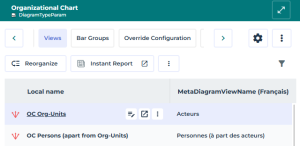
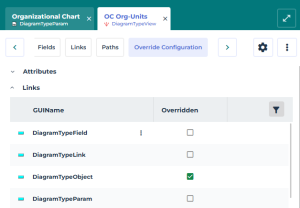
7. In its Override Configuration page, in the Links section select Overridden for the DiagramTypeObject to add the "Risk" object to this view.
8. Display the MetaClass page and click Connect to add the "BPMNxP Risk" DiagramTypeObject to the DiagramTypeView.
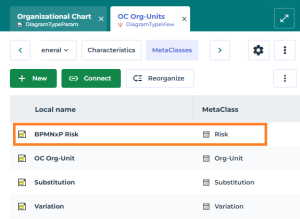
The DiagramTypeObject is added to the DiagramTypeView.
The Risk object is now available in the Organizational Chart diagram.