Inventory of Regulatory Frameworks (External Regulations)
A regulatory framework is an authority document falling under any of following categories: regulations (rules of law that, if not followed, can result in penalties), guidelines, standards, best practices.
Hopex Data Architecture provides the BCBS239 banking regulatory framework as well as the Solvability II regulation, in the form of modules. You can define other regulatory frameworks in your repository.
Importing the Module of Regulatory Frameworks
The libraries of regulations to be imported are delivered in the form of modules that can be downloaded into the HOPEX HAS console.
To download the module of a regulation:
 From your HOPEX version, open the HAS Administration Console and download the module.
 Structure of a Regulatory Framework
A regulatory framework defines the content of a regulation. It includes a set of sections, and under each section, sub-sections and articles.
You can define the objects of your organization constrained by the regulation.
 With Hopex Data Governance, you can also define the business rules that ensure the implementation of the regulation in the organization. For more details on business rules, see Creating Business Rules for Compliance.
Because a regulation can contain many chapters, you can indicate precisely which section or article objects are subject to.
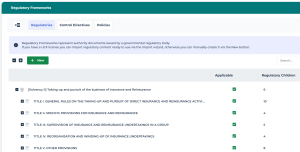
Creating a Regulatory Framework
To define a regulatory framework:
1. Click Inventories > Frameworks > Regulatory frameworks.
In Hopex Data Governance, click Compliance > Frameworks > Regulatory frameworks.2. Click New.
3. In the dialog box that opens, specify:
• the name of the regulatory framework
• its description
4. Click OK.
Specifying a Regulatory Framework on an Object
You can specify a regulatory framework in an object properties. For example, to define the regulatory framework associated to a concept, see Rules and Regulations.
Viewing the Objects Constrained by a Regulatory Framework
To view the objects constrained by a regulatory framework:
1. Hover the cursor over the regulatory framework.
2. Click Properties.
3. In the properties of the regulatory framework, click Subjected Elements.
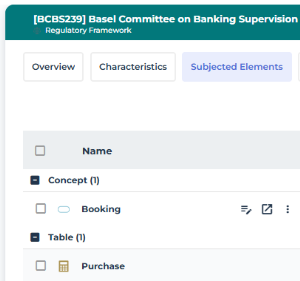
The objects in the Subjected elements are deduced. They are:
• directly connected to a regulatory framework or one of its sections, or
• connected to data category that is connected to the regulatory framework or one of its sections.
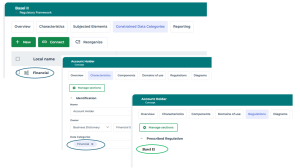
Viewing the Data Categories Constrained by a Regulatory Framework
To view the objects constrained by a regulatory framework:
1. Select the regulatory framework.
2. Click Properties.
3. In the regulatory framework properties, click Constrained Data Categories.
Adding a Section to the Regulatory Framework
To add a section to the regulatory framework:
1. Click the regulatory framework icon then New > Regulation Section.
The creation window for a section opens.
2. Specify:
• (optional) the section code
• the title
The name of the section is calculated automatically using the code of the title.• the description, which corresponds to the text of the section.
When the section is composed of other sections and articles, the texts can appear in them.3. Click OK.
The section appears in the navigation tree.
To view the objects constrained by a section of the regulatory framework:
1. Select the section of the regulatory framework.
2. In the section properties, click Subjected Elements.
It can be business data, physical data, application data, etc.
Adding an Article to a Section
To add an article to a section:
1. In the navigation tree accessed from  , click the section icon then New > Regulation Section.
, click the section icon then New > Regulation Section.The window for creating an article appears. You can define the following information:
• the article code
• the title
• the description, which corresponds to the text of the article.
2. Click OK.
The article appears in the navigation tree under the section.
The name is calculated automatically using the code and the title.Adding a Definition to an Article
You can connect to the article definitions of concepts that exist in your repository that support the understanding of the article.
To create the definition of an article:
1. In the regulatory framework tree, hover the mouse over the article.
2. In its properties window, click the Characteristics page.
3. In the Definition section, click New.
4. Select the Object type that carries the definition, for example, a concept, and select from the Short name list the object in question..
5. Click OK.
See also:
With a data catalog you can specify which sections and articles of a regulatory framework apply to an organization. See Regulations Associated with the Data Catalog.