Creating a Matrix Instant Report (List)
 To create an instant report from a Report DataSet, see Matrix (Report DataSet).
You can create a matrix from an object list. These objects make up the row objects of the matrix. Then you define the object type in column and their relationship (a link or a query) with the row objects.
If a matrix with the same object type in row has already been created, the matrix is predefined with the same object type in column and the same relationship.By default, the matrix:
• restricts the display to the first 50 rows
You can display all the rows.
• does not display icons
You can display them.
• displays all the rows including empty ones
You can hide empty rows.
To create matrix-type instant report:
1. In an object list, select the source objects.
These objects are the objects in row in the matrix.
E.g.: several applications.
2. Click Instant Report  .
.
.To generate the instant report in a new tab click  .
.
3. Select Matrix.
Objects in row shows the object type selected.
4. In the Objects in column field, select the object type in column.
If a matrix with the same object type in row has already been created, the object type in column and their relationship are pre-selected. You can enter the first characters of the object type to reach it easily.
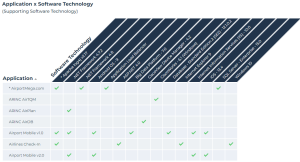
E.g.: Software Technology.
5. Define the matrix cells:
• In the Cells field select the relationship between objects in row and in column.
If there is only one relationship between both object types, the latter is automatically selected.E.g.: Supporting Software Technology.
• (If available) In the Cell value field, define the value to display in the cell (a tick by default).
6. To:
• display icons: select Display icons.
• hide empty rows: clear Show empty rows.
• display all rows: clear Preview first rows.
Whatever the display, when saving/exporting the matrix, the entire matrix is saved/exported.You can:
• save the report
See Saving the report.• export the report in Excel format
• access the properties of the objects contained in the matrix (and modify them)
• customize the matrix display