Managing Attributes and Sections
Reorganizing attributes and sections
You can reorganize the attributes and sections:
• reorganize the attributes within a section
• reorganize the added sections
The sections added to a page are placed below the standard ones.
• move an attribute into another section
To modify the organization of attributes and sections:
1. In the property page customization window, hover the cursor over the element (attribute or section) that you want to move.
2. Click the handle  of the element and drag and drop it to the required place.
of the element and drag and drop it to the required place.Removing an attribute
You can remove an attribute from a section.
 This attribute is not deleted from the repository.
To remove an attribute from a section:
1. (If needed) Hover the cursor over the section and click Expand panel  .
.
.2. Hover the cursor over the attribute and click Remove  .
.
.
Modifying an attribute
As long as you are in draft mode, you can modify an attribute you (or another user) have created. Any attribute characteristics can be modified (Name, Display name, Description, Type, Format, values).
You cannot modify the attributes provided as standard. Standard attributes customization is restricted to Hopex Customizer profile, see Overriding an object attribute.
 Once the page, containing the attribute, is confirmed, you can only modify:
• its name
• its display name
• its description
To modify a customized attribute:
1. In the Property page customization window, hover the cursor over the attribute concerned and click Modify  .
.
.
The attribute creation page appears.
2. Modify the attribute characteristics.
E.g.: modify its Name, modify/add a Display name, modify its Description.
3. Click Apply.
The attribute is modified.
Removing a section
You can remove a section added.
If the section includes created attributes, those are still available for reuse in your page.
To remove a section:
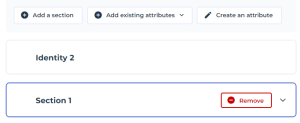
1. Hover the cursor over the section and click Remove .
.The section is removed. If created attributes were included, those are still available.
Renaming a section
To rename a section:
1. Double-click the name of the section.

2. Enter the name of the section.
Maximum: 120 characters.
Handling sections
If you have many sections, you can collapse them for easier reading.
To modify the display of a section:
1. Hover the cursor over the section and click:
• Expand panel
• Collapse panel 