Advanced Search Options
In each Solution, the advanced search tool enables a search:
• restricted to business objects related to the profile used
• extended to all object types available
This list takes the search options into account.
Depending on your expertise, you may need to extend your search:
• advanced user:
 By default, only HOPEX Customizer, HOPEX Administrator and Functional Administrator of <Solution name> profiles have access to the technical metamodel and administration attributes.
You can display the objects of the technical metamodel in the advanced search tool.
You can display administration attributes and/or translation attributes in the advanced search tool.
• very advanced user:
In the advanced search tool, you can extend the search to all the metamodel.
Displaying the technical metamodel
For specific needs, an advanced user may need to access the technical metamodel in their search.
E.g.: the Report Template MetaClass is part of the technical metamodel.
To display the technical metamodel:
1. Access (user level) Options.
2. In the Options tree, select Repository > Metamodel.
3. In the right pane, set the Technical metamodel display option to: “Yes”.
4. For this modification to be taken into account in the search tools you must close and reopen Hopex.
Expanding the advanced search to the abstract metamodel
As an expert user, your can expand the advanced search to the abstract metamodel. For this, you must first modify your Options to expand the search results scope.
The abstract metamodel encompasses all objects types, i.e.:
• contextualization objects
E.g.: Participant, Flow, Application Component.
• abstract objects
Abstract objects bear the prefix [A] and are listed subsequent to the concrete objects in the IntelliSense tool.Abstract objects are prefixed with the / character and are first listed in the IntelliSense tool.
Activating the View abstract MetaClasses option
To show the abstract metamodel objects in the results of an advanced search:
1. Access your Options.
2. Select Repository > Metamodel.
3. Activate the View abstract MetaClasses option.
4. Click OK.
The abstract metamodel objects are now available in the advanced search tool.
Extending the search results to the abstract metamodel
To extend the scope of your search results to the abstract metamodel:
1. In your Hopex desktop, access the advanced search.
2. In the object type selection drop-down menu, click All object types.
The search expands to all object types available in your repository.
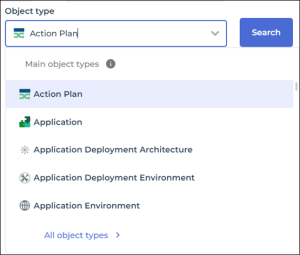
3. To get back to the main object types list, click Main object types.
The last option selected becomes the default option.Extending the advanced search to administration and/or translation attributes
When you run your search using the Wizard, to ease readability, by default, the administration and translation attributes are not available.
To extend the scope of the search to administration and/or translation attributes:
1. Access the advanced search in Wizard mode.
2. In the search wizard toolbar, click Display  .
.
.3. Select the object properties that you want to add to your search:
• See administration properties
Is only available if the Display repository administration properties and links (Options > Repository > Metamodel) is activated.Eg.: creator, creation date
• See translation properties
Is only available if the Display Translation page option is selected (Options > Installation > Languages).Eg.: in addition to the "Comment" attribute, you can also access comments in the other languages available, "comment (English)" and "comment (German)" for example.
The list of object attributes of the advanced search tool in wizard mode refreshes according to your selection.
The last option selected becomes the default option.Defining the condition combination rules
When running an advanced search in Wizard mode, by default, all the conditions that you define must be fulfilled.
If needed, you can change the condition combination rule:
• ALL conditions must be fulfilled (AND) (by default)
• AT LEAST ONE condition must be fulfilled (OR)
• NO condition must be fulfilled (NOT)
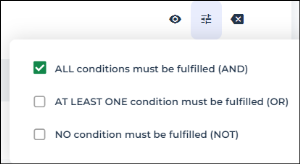
To define the condition combination rule:
1. Access the advanced search in Wizard mode.
2. In the search wizard toolbar, click Condition Combination Rule  .
.
.3. Select the rule that you want.
E.g.: Select "NO condition must be fulfilled" to search all objects that do not meet the conditions you defined.
The last option selected becomes the default option.Using the NearMatch search
You can perform “NearMatch” searches when using the advanced search tool:
• Fuzzy searching
Fuzzy searching enables to find a potentially misspelled word. It is useful to bypass typographical errors.
E.g.: searching for “manage” will show results with “monage”.
You can adjust the level of fuzziness from 1 to 10. The higher the level, the higher the tolerance for differences and the more these differences can occur at the beginning of the word. The default value is 4. The length of the word to search must be greater than this value.
To modify the fuzziness tolerance level: in Options > Tools > Query, modify the value for NearMatch approximation level.• Phonic searching
The phonic search feature looks for a word that sounds like the one you are searching for and starts with the same letter.
E.g.: searching for “seftwere” returns results with “software”, “braquedone” returns results with “breakdown”, “clems” returns results with “claims”.
• Stemming
Stemming expands the research to cover the grammatical changes of a word.
E.g.: a search on “manage” will return results containing: “manage”, “manager”, “management”.
You can resort to the NearMatch feature only when your repository is indexed. As the indexing runs every 10 minutes by default, you may have to wait for up to 10 minutes to obtain exhaustive results.
To activate and customize a repository indexing, see Managing Repository Indexing.