Sequence Diagram
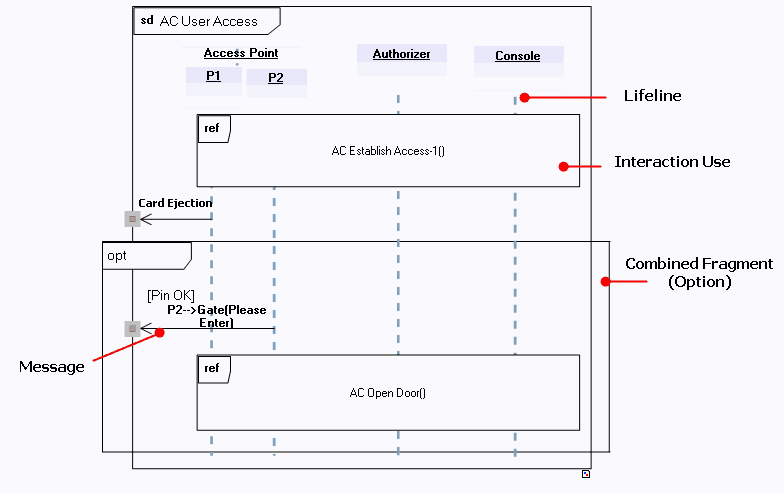
The sequence diagram highlights the chronology of messages exchanged between objects participating in an interaction. These objects are represented in the diagram by their lifelines.
Example of a sequence diagram
Creating a Sequence Diagram
To create a sequence diagram in Hopex IT Architecture:
1. Right-click on an interaction.
2. In the pop-up menu that appears, click New > Interaction Diagram.
See also Creating an Interaction.
Lifelines
A lifeline represents a participant in an interaction.
Lifelines are instances of different types (of classes, of actors, etc.).
In a sequence diagram, time is represented as passing from top to bottom along the lifelines of these objects. Message instances transit between these objects.
 The instances represented in a sequence diagram can be instances of a class, actor, package, use case, component, or node, used to define the sequence diagrams at the desired level of detail.
Creating a lifeline
To create a lifeline/
1. Click the Lifeline button.
button.2. Click in the diagram.
A dialog box opens.
3. Enter the name of the lifeline.
4. Click Add.
The lifeline appears in the diagram.
Lifeline properties
To access properties of a lifeline:
 Select the instance and click Properties in the edit window if it is not activated.
You can select the Type of the object (Actor, Class, etc.), specify the Class, Actor, etc. of which it is an instance, and indicate its Stereotype.
Messages
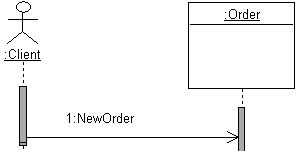
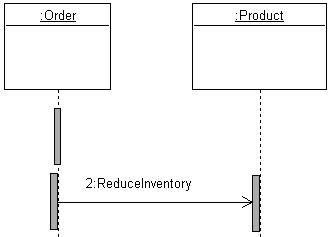
A message defines a particular communication between lifelines of an interaction. It specifies the sender and receiver via intermediate occurrence specifications, as well as the type of communication. This communication can be, for example, sending a signal, calling an operation or deleting an instance.
Examples of exchanged messages
Creating a message
To create a message in the sequence diagram:
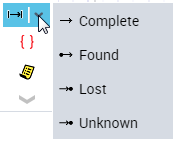
1. Click the Message button in the insert toolbar, selecting the required message type.
2. Click on the dotted line under the first object, and hold down the mouse button while dragging the cursor to the dotted line under the second object.
The message exchanged between the two objects is drawn.
Message types
You can create four types of message:
• In a message type "Complete", the sender and receiver are both defined.
• In a message type "Lost", only the sender is known. Here we consider that the message never reaches its destination.
• In a message type "Found", only the receiver is known. This is the case when origin of the message is outside the description context.
• In a message type "Unknown", neither sender nor receiver are defined.
Execution Specification
An execution specification represents an action or behavior unit that progresses from a start occurrence specification to an end occurrence specification.
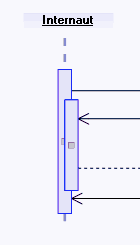
Creating an execution specification
To create an execution specification:
1. In the sequence diagram, click the Execution Specification button  in the object insert toolbar.
in the object insert toolbar.2. Position it on the lifeline concerned.
The specification appears in the diagram.
Occurrence specification
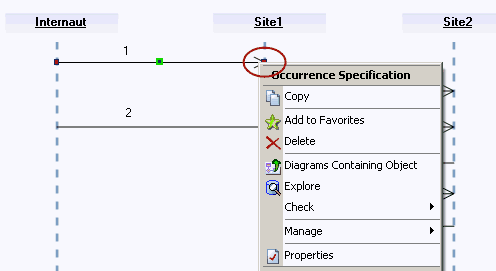
Creation of a message or an execution specification automatically creates occurrence specifications.
An occurrence specification is a syntax point at the extremity of a message or at the start or end of an execution specification.
Occurrence specifications are ordered along a lifeline.
These are basic semantic units of an interaction.
You can access the pop-up menu of an occurrence specification by right-clicking one of the extremities of a message.
Calculating sequence numbers
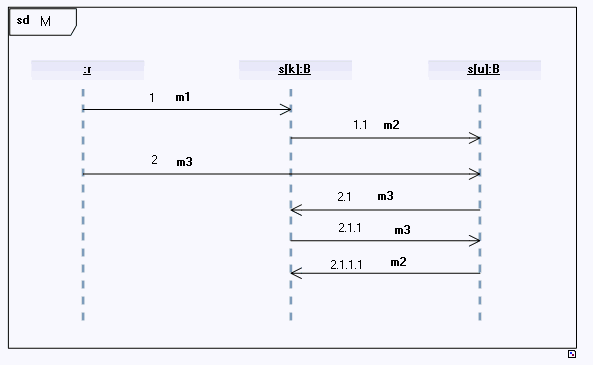
From positioning of occurrence specifications, a calculation tool enables ordering of messages and execution specifications.
To order messages circulating between lifelines of an interaction:
1. Open the pop-up menu of the described interaction.
2. Select Calculate Sequence Numbers.
The tool automatically applies numbers to messages.
Example
Combined Fragment
A combined fragment enables concise description of several execution sequences.
A combined fragment is defined by an interaction operator and the corresponding interaction operands.
Creating a combined fragment
To create a combined fragment:
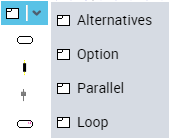
1. In the sequence diagram insert toolbar, click the Combined Fragment button.
You can associate different types of interaction operator to a combined fragment. The arrow at the right of the button offers shortcuts to four of these. See Interaction operator type.
2. Click in the diagram.
The combined fragment creation dialog box appears.
3. Specify its Name and the Interaction Operator Type if not already indicated.
4. Click Finish.
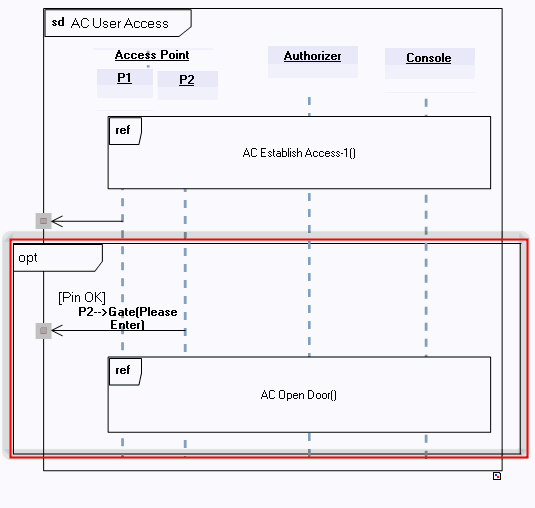
A combined fragment is represented by a rectangle with the interaction operator type displayed at the top left-hand corner.
In the example below, a combined fragment of option type translates a behavior that could disturb normal operation (door opening).
Interaction operator type
The interaction operator type conditions meaning of the combined fragment. There are various operator types: seq, alt, opt, break, par, strict, loop, region, neg, assert, ignore and consider.
Alternatives
Option
Break
Parallel
Weak Sequencing
Strict Sequencing
Negative
Critical Area
Ignore/Consider
Assertion
Loop
Interaction operands
An interaction operand is contained in a combined fragment, and represents an operand of the expression given by the containing combined fragment. It can be conditioned by an interaction constraint, which acts as guard condition.
Creating an Interaction Operand
Creating an Interaction Constraint
Interaction Use
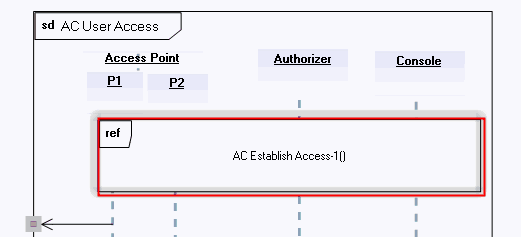
An interaction use refers to an interaction. It is a means of copying content of the interaction referenced at the interaction occurrence location.
Example

Gate
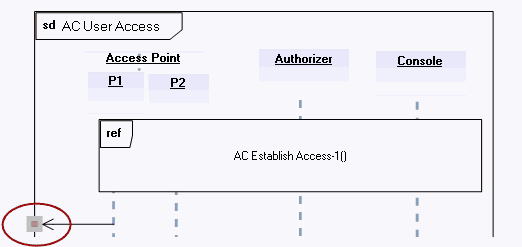
A gate is a connection point between a message external to an interaction fragment and a message belonging to this interaction fragment.
Example

Continuation
A continuation is a syntax means for defining the continuation of sequences of different branches of an Alternatives combined fragment. Continuations are similar to labels representing intermediate points in a control flow.