2. Prerequisites
2.1. Review release notes of Hopex Aquila
The release notes are available at this URL: https://releasenotes.saas.mega.com/RNA/RnView
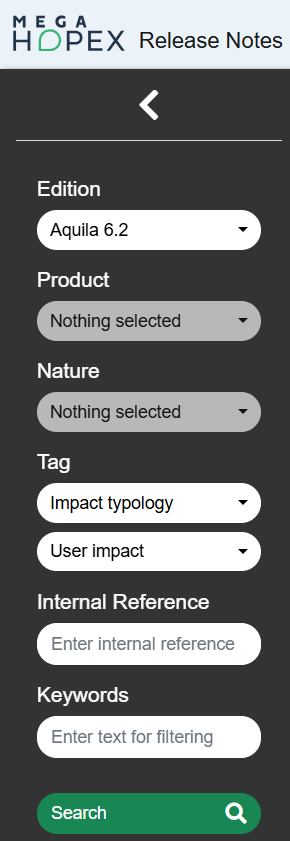
First, select all Aquila editions (Aquila 6.0, Aquila 6.0 SP1, Aquila 6.0 SP2, Aquila 6.1, Aquila 6.2...) and click Search to get search results. Then you can refine the search results by using filters.
|
Filter
|
Indication
|
|
Product
|
Select each of the products you use
You can also select All products
|
|
Nature
|
Select Changes, Deprecated, Removed
|
2.2. Check metamodel, workspaces and workflows
In the source version, for each environment:
|
Check
|
Detail
|
|
Check that version of environment is aligned with version of programs
|
Run HOPEX.exe and check that no message is displayed such as 'The versions of HOPEX and the MetaModel are not aligned (HOPEX=X.XX.XXX.XXXX - MetaModel=Y.YY.YYYY.YYYY)…'
|
|
Check that environment compiles without error
|
Run Windows Administration Console (administration.exe) and compile the environment. If the environment compilation generates a log entry in the Hopex error log, you should fix such errors before migrating your data
|
|
Check that no private workspace (ex-transactions) persists
|
In Windows Administration Console (administration.exe), check workspaces. If a private workspace persists, dispatch or delete it.
|
|
Check that each workflow is completed
|
Certain workflows (regarding Application and Software Technology) are removed with Hopex Aquila. Therefore, it will not be possible to resume them in Aquila.
|
|
Password of the login 'System'
|
Check that the password of the login 'System' is known or set to empty before migration.
This is very important since it will be requested to login with 'System'.
|
2.3. Backup data in SQL Server (production)
Perform SQL backups (.BAK files) for:
• SystemDb
• Data repository
• HAS configuration database
Example for an environment named Standard and instance port 5000
• Standard_SystemDb
• Standard_MasterData
• Standard_HAS_5000
2.4. Backup additional files
2.4.1. Backup main configuration files (production)
|
Level
|
Detail
|
|
Installation
|
Files: megasite.ini.generated and MegaModule.json.generated
Default location: C:\ProgramData\MEGA\Hopex Application Server\<instance>\.shadowFiles\hopex.core\<version>\Cfg
|
|
Environment
|
File: Megaenv.ini
Default location: C:\ProgramData\MEGA\Hopex Application Server\<instance>\Repos
|
2.4.2. Backup customization module (production)
In Hopex Aquila, customizations are packaged in a module has.custom.
By default, it is a file HOPEX Application Server Customization-XX.haspkg located by default in C:\ProgramData\MEGA\Hopex Application Server\<instance>\Modules\has.custom.
It will be necessary to transform this folder to a customization module (has.custom).
See online documentation for Hopex Aquila, MODULES > Customization Lifecycle Management.
2.5. Identify key configuration items
This applies to production.
2.5.1. Identify Hopex products used (production)
Hopex administrator should be aware of the Hopex products used.
Otherwise, you can identify them from the Hopex license used.
It is a .Must file.
There is no default location but you can identify the license folder from the file megasite.ini.generated saved previously. It contains the path of the license:
[Must Licence]
Path=<license folder>
Browse this folder, edit the file .Must.
You can get the list of products and their codes in the section [MEGAComponentInfo]:
[MEGAComponentInfo]
(LAN) Hopex MainUser=30 ; 0
(MTS2) Hopex Power Studio= 1 ; 0
(HBPA) Hopex Business Process Analysis=20 ; 0
(HITA) Hopex IT Architecture V2=10 ; 0
2.5.2. Identify authentication used (production)
Hopex administrator should be aware of the authentication mode used.
Several authentication modes are available up to HOPEX V5.0.
|
Authentication mode
|
Check in HOPEX V5.0
|
Supported in Aquila
|
|
OpenID
|
HAS Console, browse Modules > Authentication > Identify providers > Open ID
Active is checked
|
Yes
|
|
SAML2
|
HAS Console, browse Modules > Authentication > Identify providers > SAML2
Active is checked
|
Yes
|
|
Windows (IIS)
|
HAS Console, browse Modules > Authentication > Identify providers > Windows
Active is checked
|
Yes
|
|
HOPEX (MEGA)
|
HAS Console, browse Modules > Authentication > Identify providers > HOPEX
Active is checked
|
Yes
|
|
LDAP
|
Installation options
Installation > User Management > LDAP
Authentication mode is set to 'LDAP'
|
No
|
2.5.3. Identify modules used (production)
Hopex administrator should be aware of the Hopex products used.
Otherwise, to make you can take a screenshot of the page Cluster status in HAS Console (menu Cluster > Cluster status).
You can also identify them from the folder structure.
Browse module folder located by default in C:\ProgramData\MEGA\Hopex Application Server\<instance>\Modules.
For each module used, the is a subfolder with the version.
You can build a table such as:
|
Example if additional module
|
Version
|
|
has.custom
|
15.2.0+13
|
|
hopex360
|
15.7.0+6617
|
|
sample.datatypes
|
15.6.12+6579
|
2.5.4. Identify profiles used (production)
The Hopex administrator should be aware of the profiles used in Hopex.
Otherwise, you can use the following query in Hopex.
Connect with Hopex Administrator or Hopex Customizer to run the query with the wider possible vision.
|
Select [Profile] Into @PL1 Where [Profile Assignment]
Select [Profile] Into @PL2 Where [Super Profile] in @PL1
Select [Profile] From @PL1 Or @PL2
|