13. FAQ
13.1.1. How to reset HAS Instance Manager API Key / password ?
The information is stored in the hopex.yml file located by default here: C:\...\HOPEX Application Server\Instance Manager
1. Stop HAS Instance manager.
2. Edit the HOPEX.yml file.
3. Edit the ApiKey section and enter your new password.
4. Restart HAS Instance manager.
13.1.2. What are the default user's login/password?
For HAS Instance the default user is: admin with password Hopex that you need to change at first connection.
13.1.3. Do I need IIS Application pool?
No
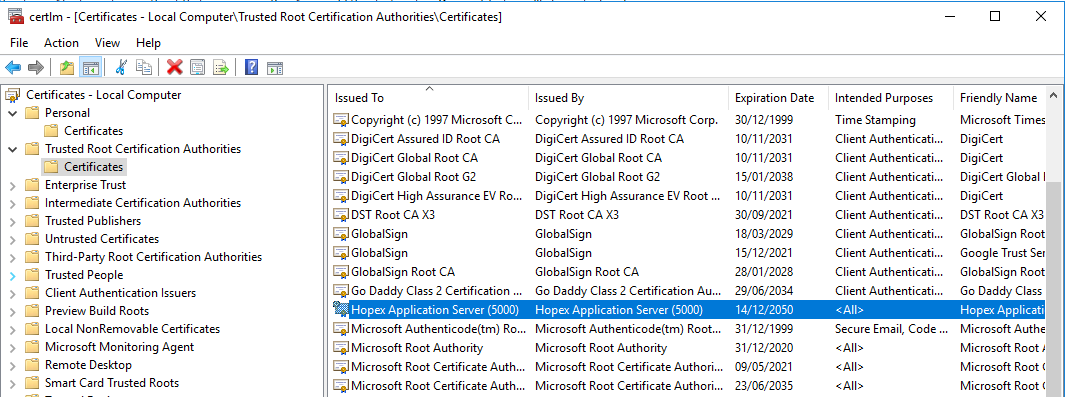
13.1.4. Access rights to certificate at installation is no valid.
When you install HAS and HAS modules are not starting. If you see the following message in HAS-Starting log:
[Error] - Failed to create certificate request. It is often due to an access denied to the CA certificate. Keyset does not exist
Go to your certificate and delete “Hopex Application Server (5000)”. Restart HAS Server. If the certificate does not appear check domain user access right.
13.1.5. When should I restart HAS Instance or HAS Instance Manager?
HAS Instance manager does not restart the instance.
Each HAS Instance can be restarted by the HAS Instance manager or the HAS Instance itself.
13.1.6. Can I limit the role of a node in a cluster?
Should you have a cluster with several HAS you may want to limit the usage of a node to server batch.
For each server:
1. Access the HAS console.
2. In the navigation menus, select Modules > Modules Settings.
3. Click  Edit Cluster Configuration.
Edit Cluster Configuration.4. In the Tags field, configure each node as required.
Add “!back” or “!Jobs” to remove these roles.
Add “!back” or “!Jobs” to remove these roles.
For example, enter the following to dedicate the batch tasks to node 1 only:
For Node 1 (https://vp-has1-v5:5000) dedicated to the jobs, Tags: “!back”
For Node 2 (https://vp-has2-v5:5000) no jobs, Tags: “!Jobs”
For Node 3 (https://vp-has3-v5:5000) no jobs, Tags: “!Jobs”
Alternative: for each server, edit the cluster.cfg file to add the tag: “!back” or “!Jobs”.
[
{
"address": "https://vp-has1-v5:5000",
"tags": ["!Back"],
"hostName": "VP-HAS1-V5",
"port": 5000
},
{
"address": "https://vp-has2-v5:5000",
"tags": ["!Jobs"],
"hostName": "VP-HAS2-v5",
"port": 5000
}
[
{
"address": "https://vp-has1-v5:5000",
"tags": ["!Back"],
"hostName": "VP-HAS1-V5",
"port": 5000
},
{
"address": "https://vp-has2-v5:5000",
"tags": ["!Jobs"],
"hostName": "VP-HAS2-v5",
"port": 5000
}
{
"address": "https://vp-has3-v5:5000",
"tags": ["!Jobs"],
"hostName": "VP-HAS3-v5",
"port": 5000
}
]
"address": "https://vp-has3-v5:5000",
"tags": ["!Jobs"],
"hostName": "VP-HAS3-v5",
"port": 5000
}
]