Defining Technology Life
The technology life is characterized by:
• Its official life cycle, specified by the vendor
• Its life cycle within the organization; it can differ from the official life cycle.
Based on this data, indicators and report types enable you to analyze the risks of technology obsolescence and the applications concerned.
Official Life Cycle
Dates of the official technology life cycle are automatically defined in the Characteristics page of the technology properties.
• Release date
• End of Support
• End of Extended Support
These properties are defined automatically when you import a technology from BDNA or IT-Pedia. To modify IT-Pedia properties, see Modifying dates from IT-Pedia.
 For more details on importing technologies, see and Importing Technologies from IT-Pedia.
you can also set them manually.
Technology Life Cycle within the Organization (Gantt)
An object evolving over time can take different states (preparation, production, retirement, etc.).
The Object life enables viewing of the planning of these different states in the form of a Gantt chart.
To view the Gantt chart representing the different states of a technology:
1. Open properties of the technology.
2. In the technology properties window, click the Characteristics page.
3. Expand the Life Cycle section.
As with an application, you can create the lifecycle of a technology. see Defining Application Life.
Initializing the life of a technology
To create the life of a technology:
4. In the properties of a technology, expand the Life Cycle section.
5. Click Initialize Object Life.
Analyzing the life cycle of a technology and the applications that use it
A report enables display in the same Gantt diagram of life cycle steps of the technology and those of the applications that use it.
A second report indicates any conflicts between life cycles of these objects.
To access these reports:
1. Open the properties of the technology concerned.
2. Click the Reports page then:
• Gantt Chart to view life cycles of the objects
• Gantt chart with conflicts to view any conflicts.
Technology Support Alert
A Support Alert MetaAtribute available on each technology compares the technology life cycle (imported from BDNA or IT-Pedia or defined manually) with its life cycle in the organization.
Viewing the support alert of a technology
To view the Support Alert attribute on a technology:
1. Click the Technologies navigation menu.
2. Display “All Technologies”.
The Support Alert column defines the use of each technology within the organization.
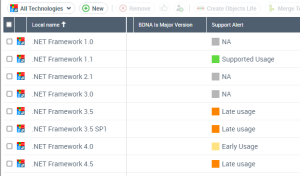
The attribute can take the following values:
• Early life cycle: the technology has a life cycle in the organization which started before the official release date of the software technology.
• Supported usage: the life cycle of the technology begins after the release date of the technology and ends before the end of the support date.
• Delayed use: the life cycle of the technology begins after the release date of the technology and ends before the end of the extended support date.
• Non-supported use: the life cycle of the technology begins after the release date of the technology and ends before the end of the extended support date.
Attribute computation
The value of the Support Alert attribute is defined by the following parameters:
Technology life cycle | Support Alert value |
|---|---|
Life cycle not defined | NA (Non applicable) |
Support end date and extended support end date not defined | NA (Non applicable) |
The release date of the technology is later than the current date and the begin date of use. | Early life cycle |
The support end date is not defined or later than the usage end date, and the extended support end date is later than the usage end date. | Supported usage |
The support end date is earlier than the usage end date, and the extended support end date is later than the usage end date. | Delayed use |
The usage end date is later than the support end date and the extended support end date. | Non-supported use |
Support Alert report
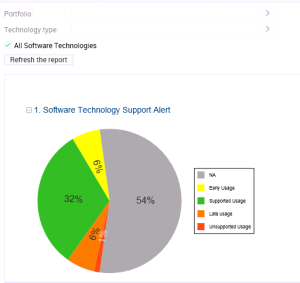
The Software Technology Support Alert report uses the Support Alert MetaAttribute to analyze technologies in the Hopex repository and displays all possible conflicts between the use of these technologies in the organization and their official life cycles.
This report is available on a technology portfolio.
To generate a Support Alert report:
1. Display the technology portfolio properties.
2. Click the Reporting > Software technology Support Alert page.
The report results appear.
See also: Obsolescence Risk and Remediation.