Managing Risks in Hopex EA
Accessing Risks
In the EA desktop, you can access risks in several ways:
Listing risks
Accessing risks from object properties
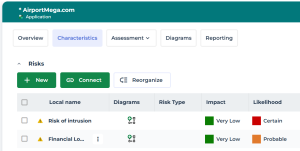
Accessing risks from a diagram
Creating a Risk
To create a risk:
1. See Accessing Risks.
2. Click New and enter a Name.
3. (Optional) optional) Specify the Risk Identification Mode and enter a Description.
4. Click OK.
You can enrich the risk description through its properties, in particular by associating it with a risk type.
5. (Optional) In the risk properties, expand the Analysis section of the Characteristics page.
6. Create or connect a risk type
 See Risk Assessment.
Viewing Project Risks
Project risks, defined in project Business Cases, can be accessed from the enterprises and transformation stages to which they are linked.
To view project risks for an enterprise:
1. In the Business > Strategic Planning navigation menu, open the enterprise properties.
2. Expand the Risks page and expand the Enterprise project risks section.
Project risks are specified in the Business Case page of a project linked to an enterprise transformation stage.
To view project risks for a transformation stage:
1. In the enterprise tree, expand the Transformation Stage folder.
2. In the properties of a transformation stage, select the Risks page.
3. Expand the Project Risks of Transformation Stage section.
(Project risks are specified in the Business Case page of a project linked to this stage.)
Risk characteristics
To access characteristics of a risk:
 Click a risk.
In the property page, you can specify:
• the risk identification Code
• the fact that risk is “high level” by selecting the Major Risk check box
• the risk Owner
• the risk Identification Mode
The risk could have been identified from:
• an "incident database"
• a "workshop"
• a "survey"
• an "audit"
• the risk Description
The risk Status cannot be modified since it is managed by the workflow associated with the risk.Risk Overview
The Overview property page gives access to computed information in the form of a dashboard.
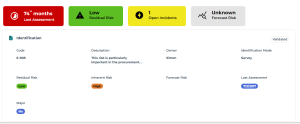
The following computed information is provided:
• Last Assessment: elapsed time (number of months) since the last assessment
This is an indicator of how often a risk is assessed. This can be useful when it comes to decide when to perform the next assessment.• Residual Risk: average of the net risk obtained from the last assessment. All the contexts for which the risk was assessed during the last assessment session are considered (e.g. entities, processes, applications…) and the average is computed.

• Forecast risk: represents the residual risk forecast for the year to come (average residual risk)
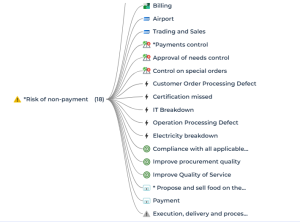
The overview also provides the Risk Impact Report.
Risk Responsibilities (RACI)
Risk properties include a Responsibilities section to define the different persons responsible for risk management. For more details, see Responsibilities (RACI).
Contextualizing Risks
Contextualizing a risk consists in defining its scope.
To contextualize a risk:
In the risk properties, expand the Scope section.The scope can consist of different types of objects:
• Process categories and Processes exposed to the risk.
• Operations
• Entities concerned by the risk.
Defining entities on risks is a pre-requisite to risk assessment. See also Preparing the Assessment Environment.• Business Lines
Risk Diagrams
To create a risk diagram:
1. In the properties of an application, for instance, select Diagrams.
2. Click Create a diagram then View more diagram types > Risk Diagram > Create this diagram.
You can create a diagram containing Risks and Controls.