6 Defining Container characteristics
6.1 Customizing Containers
Once you created a Container, you can customize its display and size in the workspace. To do this, you must specify its characteristics (see Container attributes) in its Properties pages:
1. Open the Container Properties.
2. Select the Characteristics tab.
3. In the Presentation section, you can for example specify the name of the Container in the user interface (_GUIName) and its corresponding icon (MetaPicture).
 _GUIName and MetaPicture are only specified in the case of a Container of Containers. If the Container contains a tool, then the _GUIName and MetaPicture of the tool are displayed.
Note: Alternatively, the title and icon of the Container can be specified dynamically in the user interface by means of a macro, see Giving a title and/or icon dynamically to a Container.
6.2 Giving a title and/or icon dynamically to a Container
To give a title and/or icon dynamically to a Container, you must create a macro, which you will connect to the MEGA Tool of the Container. It is the MEGA Tool (example: "MetaTree Tool") that gives the title (GUI name) and icon to the Container.
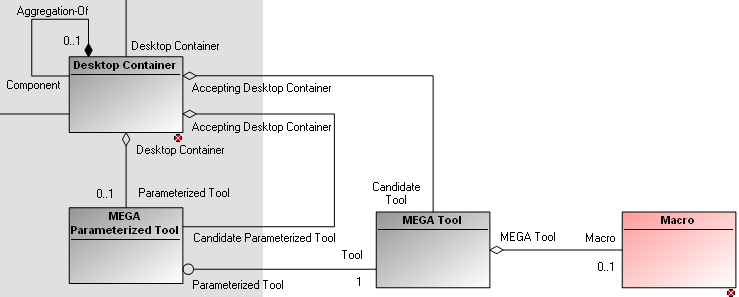
To give the title and icon of a Container dynamically in the user interface (example: "Home Container"):
1. In the MEGA Desktop workspace, execute a Query on the MEGA Tool concerned (example: "MetaTree Tool").
Alternatively, if you do not know the name of the MEGA Tool:
a. In the MEGA Desktop workspace, display the MetaStudio navigation window.
b. Expand the MEGA Application folder, then the application and desktop concerned.
c. Expand the Desktop Container (example: "Navigation Trees"), then the Desktop Container Component (example: "Home Container" of) then the MEGA Parameterized Tool (example: "Home MetaTree Component") concerned.
2. Right-click the MEGA Tool (example: "MetaTree Tool") concerned and select Explore.
3. From the exploration tree of the MEGA Tool (example: "MetaTreeTool”), right-click Macro and select New.
4. Edit the macro and specify in the script:
the function that will specify the title:
Function GetTitle (mgRoot As MegaRoot, ParameterizedToolId as Object)
…/…
End Function
Example of macro implemented for the MEGA Tool "MetaTree Tool":
Function GetTitle(mgRoot As MegaRoot, ParameterizedToolId as Object)
Dim mgScanner
Set mgScanner = New Scanner
Set mgScanner.mgResource = mgRoot.CurrentEnvironment.Resources
Set mgScanner.mgToolkit = mgRoot.currentEnvironment().toolkit()
mgScanner.mgScan = 1
mgScanner.mgFunction = 1
mgScanner.mgResource.ScanCollection ParameterizedToolId, "Abstract Property", mgScanner ,1 , "Reference" & " " & "MetaAttribute Type" & ":T"
If mgScanner.mgName = "" Then
GetTitle = "!!! No GuiName Found"
Else
GetTitle = mgScanner.mgName
End If
End Function
the function that will call the icon:
Function GetPicture(mgRoot As MegaRoot, ParameterizedToolId as Object)
…/…
End Function
Example of macro implemented for the MEGA Tool "MetaTree Tool":
Function GetPicture(mgRoot As MegaRoot, ParameterizedToolId as Object)
Dim mgScanner
Set mgScanner = New Scanner
Set mgScanner.mgResource = mgRoot.CurrentEnvironment.Resources
Set mgScanner.mgToolkit = mgRoot.currentEnvironment().toolkit()
mgScanner.mgScan = 1
mgScanner.mgFunction = 2
mgScanner.mgResource.ScanCollection ParameterizedToolId,"Abstract Property", mgScanner ,1 , "Reference" & " " & "MetaAttribute Type" & ":T"
GetPicture = mgScanner.mgPicture
If mgScanner.mgPicture = "" Then
GetPicture = ""
Else
GetPicture = "~" & mgRoot.CurrentEnvironment.Toolkit.GetString64FromID(mgScanner.mgPicture)
End If
End Function
In the user interface, the title and icon of the Container concerned (example: "Home Container") are specified dynamically. You do not need to specify _GUIName and MetaPicture in the Properties of the Container. When the name of the Container changes, modification is taken into account automatically.
6.3 Defining Container dimensions
You cannot define dimensions of the Center Container, this adapts to the other Containers to fill the space.
By default, the width of a Container (other than the Center Container) is defined as 600 pixels. You can modify this width and/or define a minimum width (Minimum Width).
To modify the dimensions of a Container:
1. Open the Container Properties.
2. Select the Characteristics tab.
3. In the Dimension frame, specify the parameters concerned (width, Minimum Width).
6.4 Defining Container behavior
Having created a Container, you must define its behavior in the workspace. To do this, you must specify its Characteristics (see Container attributes) in its Properties pages:
1. Open the Container Properties.
2. Select the Characteristics tab.
3. In the Behavior frame, select the required behaviors.
Note for example that by default a Container is visible and not resizable.
6.5 Defining Container candidates
To define where the MEGA Tool or the MEGA Parameterized Tool opens when you request its opening (from the pop-up menu of an object for example) you must define this MEGA Tool or MEGA Parameterized Tool as candidate for a Container.
1. Open the Properties of the Container in which you want to see the tool appear (example: "Desktop Container Edit Area").
2. Select the Candidates & Affinities tab.
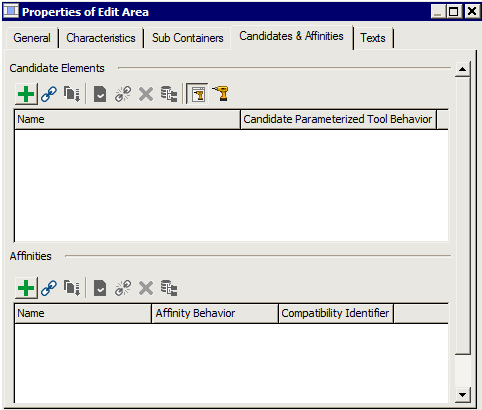
3. In the Candidate Elements frame, click the icon of the candidate concerned Candidate Parameterized Tool  or Candidate Tool
  .
.
or Candidate Tool .4. Click Connect  (or New
  if the MEGA Parameterized Tool/Tool concerned is not yet created).
(or New if the MEGA Parameterized Tool/Tool concerned is not yet created).5. Select the MEGA Parameterized Tool/Tool and click OK.
The Parameterized Tools/Tools are listed in the Candidate Elements frame of the Desktop Container (example: "Edit Area").
In the Candidate Tool/Parameterized Tool Behavior field, the value:
• "Replace" indicates that the existing page will be replaced,
• "Add" indicates that a new page will be added.
At an opening command of these Parameterized Tools/Tools, they open in the specified Container (example: "Edit Area").
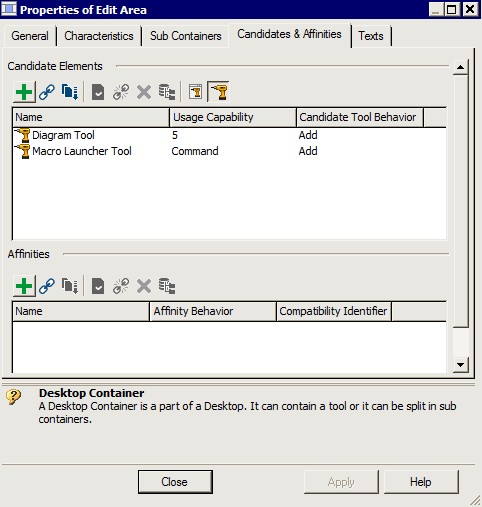
Example:
In our case, the Left Container of Accordion type is candidate to receive all trees. For example, the Favorites tree opens in the Accordion Container.
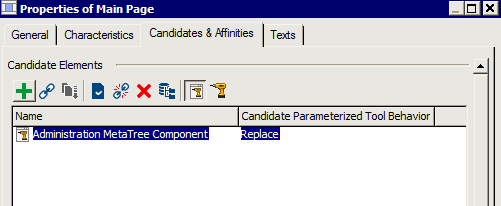
If you want a particular tree (example: Administration) to open in a Container A (example: "Main Page"), this Container A (example: "Main Page") must have as Candidate Parameterized Tool the Administration tree.
6.6 Defining Container affinities
An affinity enables characterization of a Container. You can for example define that a Tool or MEGA Parameterized Tool opens in a Container that has an affinity "Affinity Name".
An affinity is only used by code, unlike candidates which are defined in the metamodel. If no code is defined for opening of a tool with affinity, then the configuration defined for candidates is taken into account (see Defining Container candidates).
1. Open the Properties of the Container for which you want to define an affinity (example: Desktop Container "Properties Page").
2. Select the Candidates & Affinities tab.
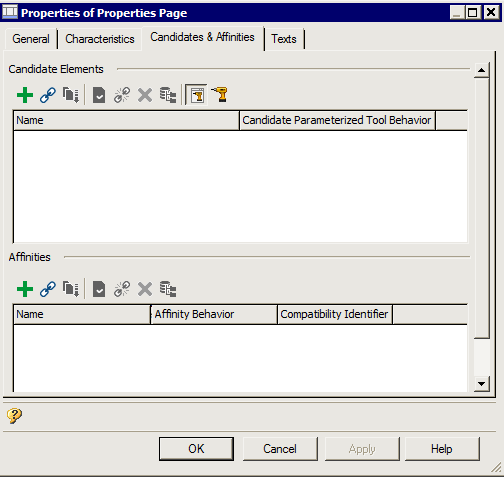
3. In the Affinities frame, click New (or Connect  if the affinity concerned is already created).
(or Connect if the affinity concerned is already created).4. Enter the Name of the affinity (example: "Property Affinity").
5. (Optional) In the Affinity Behavior field, by default the affinity behavior has value Replace, in this case the page will open replacing the previous content of the Container. To add rather than replace a Container tab, modify the affinity behavior parameter to Add.
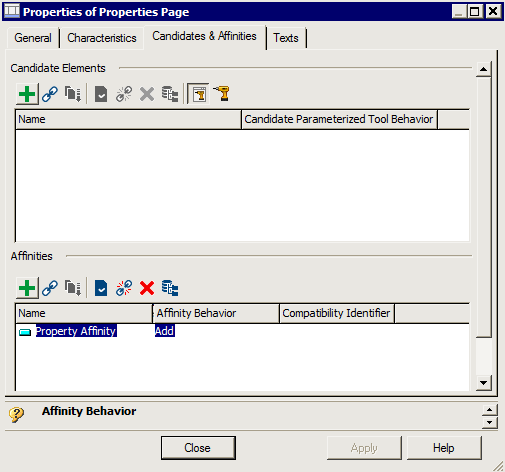
6. (Optional) The Compatibility Identifier field enables unique definition of a Container. The tool to be opened will therefore always open in the Container that has this specific identifier.
Example: This can be useful for example to always open analysis reports in a specific tab, and Properties pages in another specific tab.