Renaming Concepts
For each of the HOPEX concepts that can be renamed, you can redefine:
• the concept name
• other translatable fields
Changing a concept name for a specific Terminology language
 For details on the list of concepts that can be renamed and the attribute that corresponds to the concept name, see Concepts that Can be Renamed.
Prerequisite: To use the new terminology, you must first translate and compile the Metamodel (you do not need to compile the technical data).
For more details on translate and compile, see HOPEX Power Supervisor guide, chapter "Compiling an environment".To change a concept name:
1. Access the concept Properties.
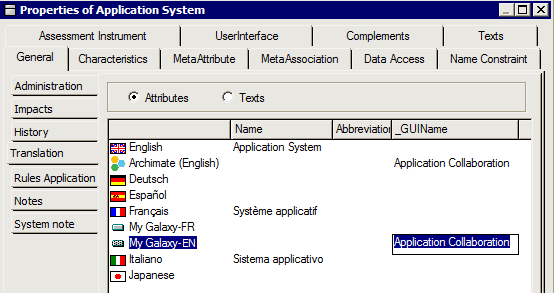
E.g.: the Application System MetaClass.
2. In the General tab select Translation sub-tab.
3. Select Attributes.
4. In the language line, in the _GuiName field enter the concept name corresponding to the application context.
For example you can modify the Application System Metaclass in the context of "My Galaxy" terminology for English.
For "My Galaxy-EN" language, in the _GUIName field enter "Application Collaboration".
5. Click OK to finish.
For these modifications to be taken into account you need to compile the Metamodel.Changing translatable fields of a concept
The majority of concepts that can be renamed have a "Comment" field, which can be modified to correspond to a context-specific terminology.
Some concepts, such as "_Code Template" have other fields that can be renamed (e.g.: "Comment", "Translatable Code template").
To modify a Code Template field:
For example a Code Template in the context of Galaxy Terminology and for English language.
1. Access the _Code Template properties.
2. Select the General > Translation tab.
3. Select Texts.
4. Select the field you want to modify.
For example: "Translatable Code template"
5. In the left language field, select the language from which you want to make the modification.
For example: English.
6. In the right language field, select the language you want to specify.
For example: Galaxy-US.
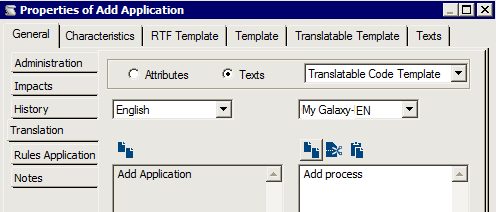
7. In the right pane, enter the modified string.
8. Click OK.
For these modifications to be taken into account you need to compile the Technical Data.