2 Create a VB Script component
2.1 VB Script component architecture
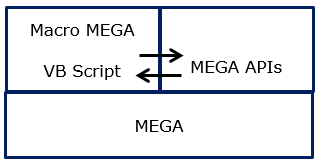
MEGA APIs are natively COM and can be used by COM application. The VB Script language uses the Dispatch protocol to handle objects and access their methods. Therefore using VB Script language to access MEGA objects is completely standard. The following diagram illustrates the way the VB Script component interacts with MEGA APIs:
2.2 Creating a VB Script component
VB Script code can be written and used:
• in an external file
• in a MEGA macro
• directly in the MEGA script editor.
You can use the script editor to write VB scripts using MEGA APIs, which enables you to execute operations on HOPEX repository content.
2.2.1 Creating a VB Script component
To create a VB Script component with the Script Editor:
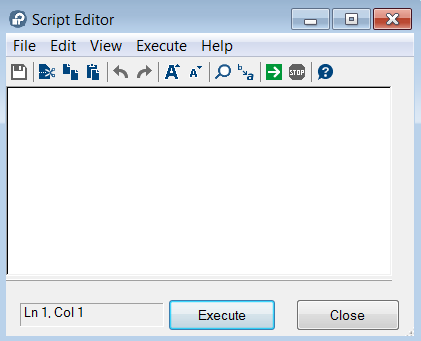
1. From HOPEX menu bar, select Tools > Script Editor to launch the script editor.
The Script Editor dialog box opens.
2. From Script Editor menu bar, select File > Save As.
3. Select either:
- a Macro to save the script as a macro in the repository,
- a File to save the script as an external VB Script file.
4. Enter your VB Script code.
2.2.2 Creating a VB Script macro with the wizard
HOPEX includes a wizard that enables preparation of macro parameters and code according to the use imagine by the user. Code is initialized according to the MEGA concept implemented.
To use the macro creation wizard on an object of TaggedValue type:
1. From HOPEX toolbar, click Explore  .
.
.2. From Explore window, create a new object of the TaggedValue MetaClass.
3. Display Empty Collections.
4. Right-click Implementation folder and select New.
The Creation of Macro wizard appears.
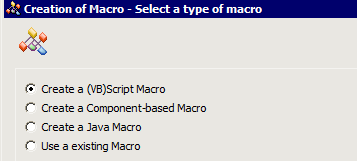
5. Select Create a (VB)Script Macro.
6. Click Next.
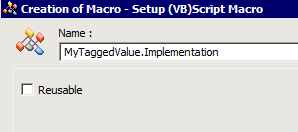
7. (Optional) Modify the Name of the macro.
8. (Optional) If the macro you have created can be reused for another TaggedValue, select the Reusable.
9. Click Finish.
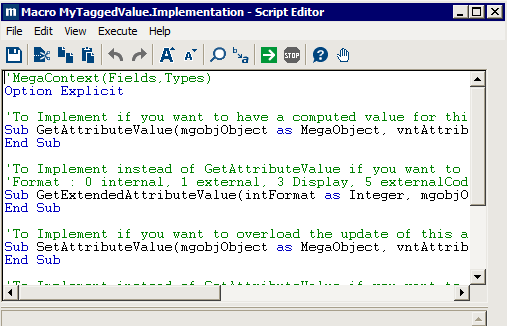
The macro (e.g.: “MyTaggedValue.Implementation) is created and its code already initialized.
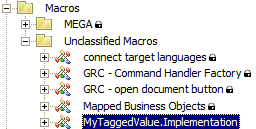
The macro (e.g.: “MyTaggedValue.Implementation) is stored in the Macros folder, Unclassified Macros sub-folder.
2.3 Editing a VB Script code
The Script Editor menu bar enables you to access commands that ease your editing actions.
The Script Editor tool bar enables you to easily access these commands to simplify your editing work.
Alternatively, you can use the menu shortcuts.
To edit a VB Script file/macro with the Script Editor:
1. In the Script Editor menu bar, select File > Open and select the script type a File or a Macro.
2. Select the file/macro.
The file/macro code is displayed in the Script Editor.
To execute the script:
In the Script Editor toolbar, click Execute  .
.
. Alternatively in the Script Editor menu bar, select Execute > Execute.
Global code execution starts.
To stop your script execution, in the Script Editor toolbar, click Stop  .
.
. To save the script code:
In the Script Editor toolbar, click Save  .
.
.Alternatively in the Script Editor menu bar, select File > Save As.
To move parts of the code to another position:
In the Script Editor toolbar, select the code part and click either:
Cut  to cut the selected code
to cut the selected codeCopy  to copy the selected code
to copy the selected code Paste  to paste the selected code
to paste the selected codeAlternatively in the Script Editor menu bar, select the File menu and then select the corresponding command or use the menu shortcuts:
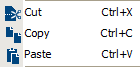
To cancel or repeat an action you have carried out:
In the Script Editor toolbar, click:
Cancel  to cancel your last action
to cancel your last action Repeat  to repeat you last action
to repeat you last action Alternatively in the Script Editor menu bar, select the Edit menu and then select File menu and then select the corresponding command or use the menu shortcuts:
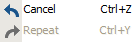
To enlarge or reduce font size:
In the Script Editor toolbar, click:
Enlarge Font  to enlarge the font size
to enlarge the font sizeReduce Font  to reduce the font size
to reduce the font sizeAlternatively in the Script Editor menu bar, select the View menu and then select the corresponding command.
To query or replace part of your code:
In the Script Editor toolbar, click:
Query  to find a character string in your code
to find a character string in your codeReplace  to find a character string in your code and replace it by another one
to find a character string in your code and replace it by another oneAlternatively, in the Script Editor menu bar, select Edit > Query or Edit > Replace.
To test your script:
In the Script Editor toolbar, click Execute to test your script.
to test your script. If there is an error in your script, the line in error is highlighted and an error message is displayed in the bottom pane. This error message includes the line number in error and the error type.
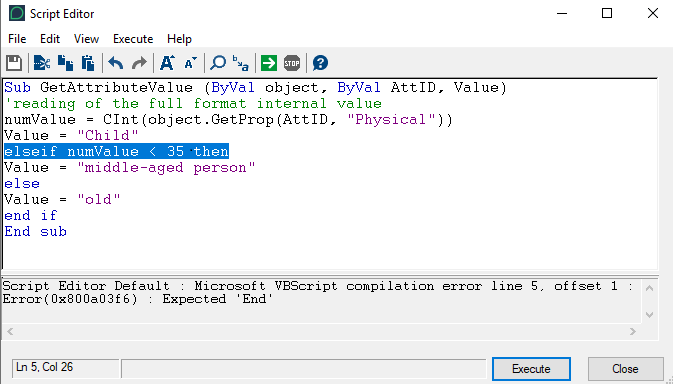
To stop your script execution, in the Script Editor toolbar, click Stop .
.Alternatively, in the Script Editor menu bar, select Execute > Execute or Execute > Stop.
To reach a specific point in your code:
1. In the Script Editor menu bar Select Edit > Go to Line.
2. In the dialog box that appears, enter the line number you want to reach and click OK.