Report Template Creation: The Big Picture
Displaying a Table, a Radar/Line/Bar/Pie Chart, a Set of Gauges, or a Word Cloud
You can create a Report Template showing a table, a radar chart, a line chart, a bar chart, a pie chart, a set of gauges or a word cloud:
• from a Report DataSet, or
• using a Report Table View
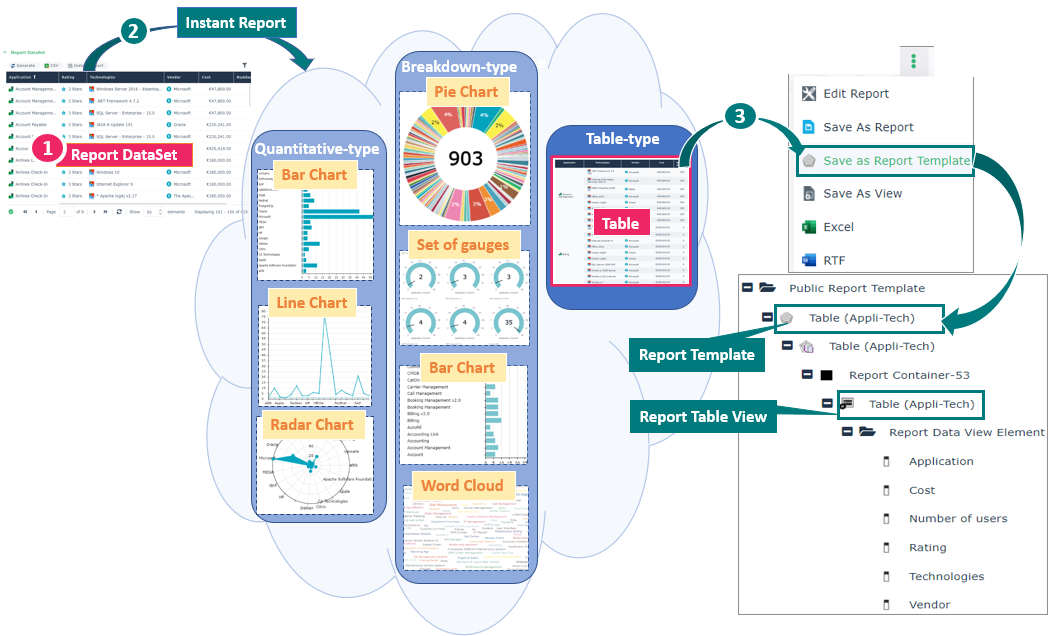
From a Report DataSet
To create a Report Template showing a table, a radar chart, a line chart, a bar chart, a pie chart, or a word cloud:
1. Access a Report DataSet.
2. From the Report DataSet, generate the Instant Report type corresponding to the chart type you want to display in the report:
• Breakdown for a pie chart, a bar chart, a set of gauges, or a word cloud.
• Quantitative for a bar chart, a line chart, or a radar chart.
• Table for a table.
3. In the Report section, click More  > Save As Report Template
  .
.
> Save As Report Template . Note: if you customize the report display, this customization is not taken into account in the Report Template.
4. Enter a Name to the report and click OK.
A public Report Template displaying the chart (table, radar chart, line chart, bar chart, pie chart, or word cloud) is created, with its public Report Table View. They both have the same name.
 You can access the Report Template in your Home page, from the Custom Report Templates tile. It is also stored in the Public Report Template folder.Note that Save as Report, generates a public report and also a private Report Template, which you can access in Private Report Template > My Report Templates folder.
From a Report Table View
You can customize an instant report generated from a Report DataSet as your needs, and save it as a Report Table View so as to reuse it in a Report Template.
Once saved, you can still modify the Report Table View as needed.
To create a Report Template showing a table, a radar chart, a line chart, a bar chart, a pie chart, or a word cloud:
1. Access a Report DataSet.
2. From the Report DataSet, generate the Instant Report type corresponding to the chart type you want to display in the report:
• Breakdown for a pie chart, a bar chart, a set of gauges, or a word cloud.
• Quantitative for a bar chart, a line chart, or a radar chart.
• Table for a table.
3. In the Report section,, click More > Save As View  .
.
> Save As View .Note: if you customize the report display, this customization is not taken into account in the Report Table View.A Report Table View is created.
4. You can:
• Create a Report Template using the Report Table View.
• Add the Report Table View to an existing Report Template.
Displaying a Matrix-Bar Chart or a Matrix-Radar Chart
A Report Template can show a matrix associated with its corresponding bar chart or radar chart.
You can create a Report Template showing a matrix-bar chart or a matrix-radar chart:
• from a Report DataSet
• using a Report Matrix View
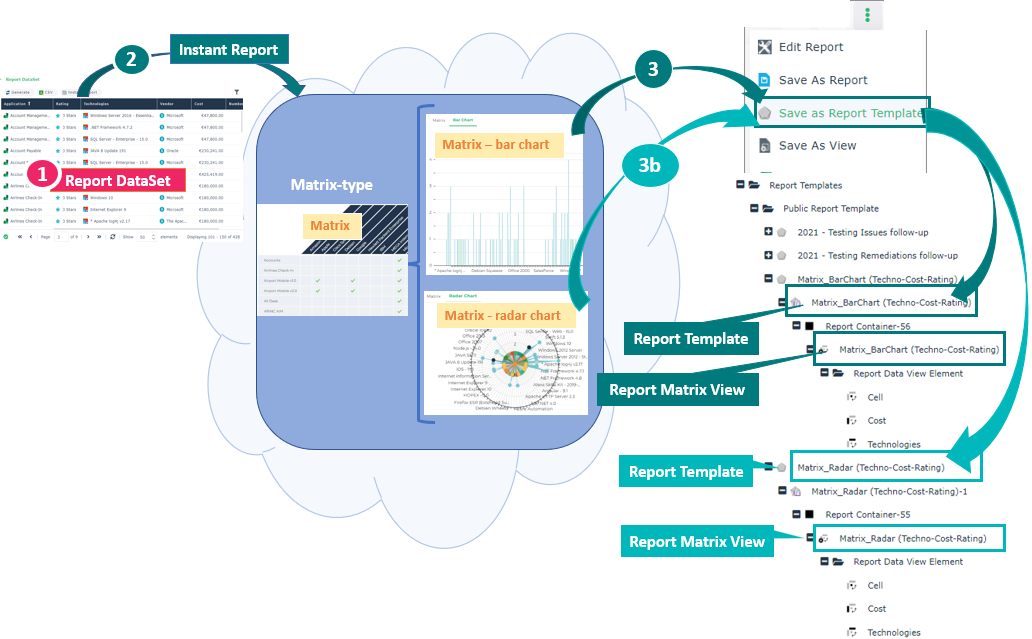
From a Report DataSet
To create a Report Template showing a matrix-bar chart or a matrix-radar chart:
1. Access a Report DataSet.
2. From the Report DataSet, generate a Matrix type Instant Report  .
.
.3. Select the chart type: Bar chart or Radar chart.
4. In the Report section, click More > Save As Report Template .
> Save As Report Template .Note: if you customize the report display, this customization is not taken into account in the Report Template.5. Enter a Name and click OK.
A public Report Template displaying two tabs (the matrix and its associated bar/radar chart) is created, with its public Report Matrix View. They both have the same name.
You can access the Report Template in your Home page, from the Custom Report Templates tile. It is also stored in the Public Report Template folder.Note that Save as Report, generates a public report and also a private Report Template, which you can access in Private Report Template > My Report Templates folder.From a Report Matrix View
You can customize an instant report generated from a Report DataSet as your needs, and save it as a Report Matrix View so as to reuse it in a Report Template.
Once saved, you can still modify the Report Matrix View as needed.
To create a Report Template showing a matrix-bar chart or a matrix-radar chart:
1. Access a Report DataSet.
2. From the Report DataSet, generate a Matrix type Instant Report .
.3. Select the chart type: Bar chart or Radar chart.
4. In the Report section, click More > Save As View .
> Save As View .Note: if you customize the report display, this customization is not taken into account in the Report Matrix View.A Report Matrix View is created.
5. You can:
• Create a Report Template using the Report Matrix View.
• Add the Report Matrix View to an existing Report Template.
Displaying a Graph
You can create a Report Template showing a graph:
• from a GraphSet Definition, or
• using a Report Graph View
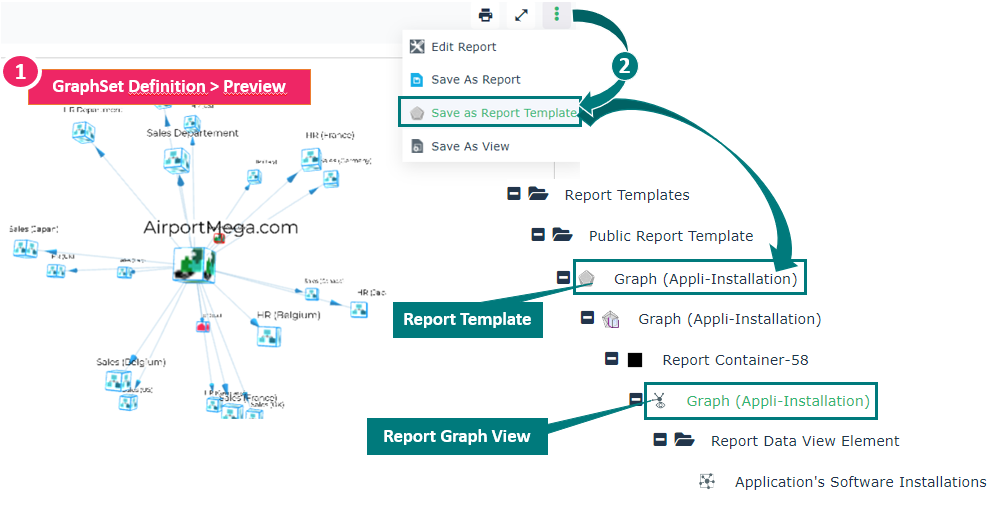
From a GraphSet Definition
To create a Report Template showing a graph:
1. Access a GraphSet Definition.
2. From the GraphSet Definition properties, Preview page, click More > Save As Report Template .
> Save As Report Template .Note: if you customize the report display, this customization is not taken into account in the Report Template.3. Enter a Name and click OK.
A public Report Template displaying the graph is created, with its public Report Graph View. They both have the same name.
From a Report Graph View
You can preview a graph from a GraphSet Definition, and save it as a Report Matrix View so as to reuse it in a Report Template.
To create a Report Template showing a graph:
1. Access a GraphSet Definition.
2. From the GraphSet Definition properties, Preview page, click More > Save As View .
> Save As View .A Report Graph View is created.
3. You can:
• Create a Report Template using the Report Graph View.
• Add the Report Graph View to an existing Report Template.
Displaying a Gauge
You can create a Report Template showing a gauge:
• from a Query, or
• using a Report Table View
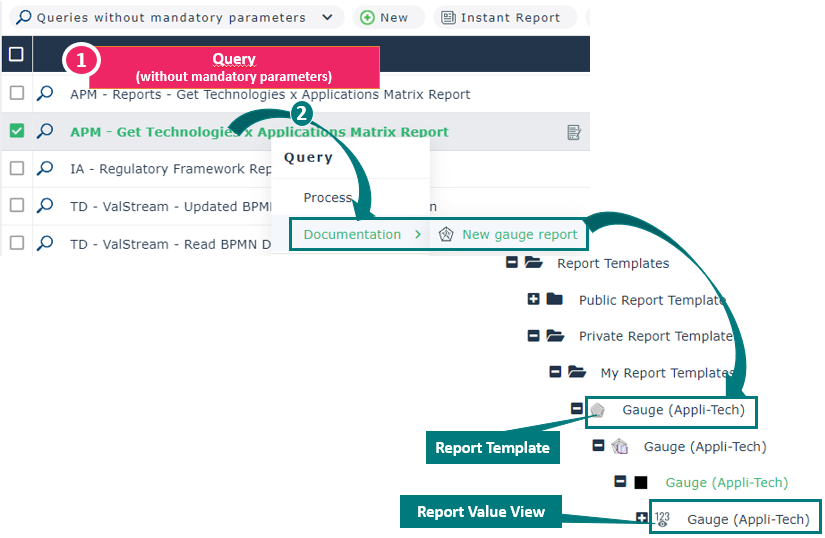
From a Query
To create a Report Template showing a gauge:
1. Access the Queries without mandatory parameters list.
2. Right-click a query and select Documentation > New gauge report.
A public report displaying the gauge is created.
A private Report Template is automatically created, with its private Report Value View.
You can access the Report Template in your Home page, from the Custom Report Templates tile. It is also stored in the Private Report Template folder.From a Report Value View
To create a Report Template showing a gauge:
1. Access the Queries without mandatory parameters list.
2. Right-click a query and select Documentation > New gauge report.
A Report Template is automatically created, with its Report Value View.
3. You can:
• Create a Report Template using the Report Value View.
• Add the Report Value View to an existing Report Template.
Displaying a Breakdown, a Dendrogram, a TreeMap, or a TreeTable
You can create a Report Template showing a Breakdown, a Dendrogram, a TreeMap or a TreeTable:
• from a TreeSet Definition, or
• using a Report Tree View
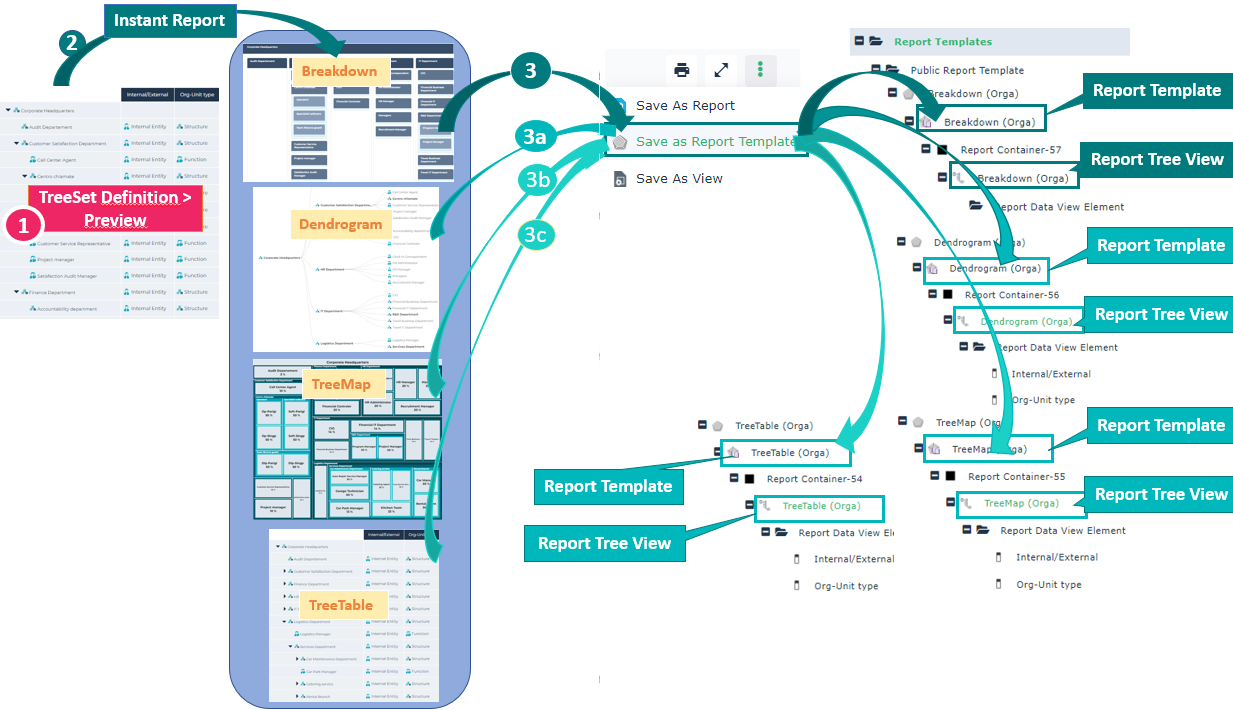
From a TreeSet Definition
To create a Report Template showing a Breakdown, a Dendrogram, a TreeMap, or a TreeTable:
1. Access a TreeSet Definition.
2. From the TreeSet Definition properties, Preview page, click Instant Report and select the rendering type:
E.g.: Breakdown, Dendrogram, TreeMap, or TreeTable.
3. In the Instant Report, click More > Save As Report Template .
> Save As Report Template .Note: if you customize the report display, this customization is not taken into account in the Report Template.A public Report Template displaying the Breakdown map, Dendrogram, TreeMap, or TreeTable is created, with its public Report Tree View. They both have the same name.
You can access the Report Template in your Home page, from the Custom Report Templates tile. It is also stored in the Public Report Template folder.Note that Save as Report, generates a public report and also a private Report Template, which you can access in Private Report Template > My Report Templates folder.From a Report Tree View
To create a Report Template showing a Breakdown, a Dendrogram, a TreeMap, or a TreeTable:
1. Access a TreeSet Definition.
2. From the TreeSet Definition properties, Preview page, click Instant Report and select the rendering type:
E.g.: Breakdown, Dendrogram, TreeMap, or TreeTable.
3. Click More > Save As View .
.A Report Tree View is created.
4. You can:
• Create a Report Template using the Report Tree View.
• Add the Report Tree View to an existing Report Template.