Setting Up the Connection
To set up the connection between HOPEX and ServiceNow:
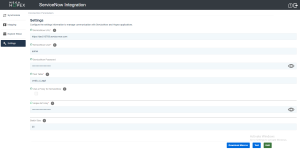
1. In the menu, select Settings.
2. Enter ServiceNow authentication data.
3. (Optional) Modify the default Test Table.
• This table is used to test the connection and the rights of the user.
4. (Optional) Tick the box to set up a Proxy for ServiceNow.
 See Setting Up a Proxy.
5. Enter an API key.
6. (Optional) Modify the default Batch Size.
• This represents the quantity of objects synchronized in each call to the web service.
The higher the value, the higher the performance. But bear in mind that this may generate errors if the value is higher than the number of objects in each call. 7. Click Test to check whether the connection between ServiceNow and HOPEX is successful.
8. Click Save.
Importing Macros
In some cases during installation or updates, you might need to import macros. A warning is then displayed in the User Interface.
To import macros:
1. From the Settings menu, click Download Macros.
2. Access HOPEX Administration.
See Accessing HOPEX Administration.3. Expand Environments > Repositories.
4. Right-click the relevant repository, click Object Management > Import.
 Make sure the HAS instance is restarted after you import the macros.