Prerequisites
ServiceNow Prerequisites
Version
ServiceNow Integration supports all versions supported by Service Now.
Authentication
The following data is necessary to connect your ServiceNow instance to HOPEX:
• URL of your ServiceNow instance
• User Name
• Password
Bear in mind that the user needs to have access to both REST APIs and the objects to synchronize.
 Authentication is done by "Basic Auth".
 HOPEX Prerequisites
Version
You can access ServiceNow Integration using the following HOPEX versions:
• HOPEX V5 CP6 (from Hotfix 27)
• HOPEX V5 CP7 (from Hotfix 10)
• HOPEX V6 SP1 (from CU4)
Module installation
ServiceNow Integration module must have been imported into HOPEX. Note that this step is for on-premise deployment solutions only (it is not required if you are using a SaaS solution).
See Importing a Module into HOPEX.Extra User
In order to ensure performance, you need to use 2 different users:
• Your regular user to access HOPEX
• Another user to create an API Key and set up the connection between HOPEX and ServiceNow (on-prem solution only)
It is therefore recommended that you create a new user to set up your API key. Note that you do not need an extra license for that.
See Creating a User.API key
You need to create an API key to set up the connection between HOPEX and ServiceNow (on-prem solution only).
To create an API key:
1. Connect to HOPEX Application Server - Console.
2. Select Modules > Authentication.
3. Select Api keys, then click Create.
• Enter a key Name.
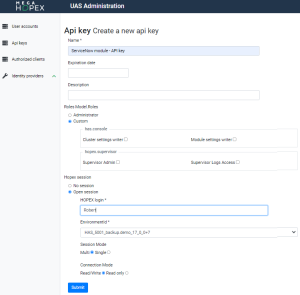
4. Configure the Roles:
• Select Custom
• Leave the fields below blank
5. Configure Hopex session:
• Select Open session
• Enter a valid HOPEX login
 Remember that the HOPEX login used to create the API key must be different than the HOPEX login used to access ServiceNow Integration. See Extra User.
• Select the EnvironmentId
• Select the Repository if applicable
You need to create one API key per repository.• Select the Profile if applicable
Bear in mind that the profile you use must have sufficient CRUD rights on the objects that will be synched. 6. Configure Session mode:
• Multi (recommended)
• Single (slower and requires more memory)
7. Configure Connection Mode field:
• Read/write (recommended)
• Read only (can be used only if you synchronize data from HOPEX to ServiceNow)
8. Click Submit.
9. Copy the key.
Save the key somewhere: you will not be able to access it at a later stage.  If you have lost the API key, you can simply create a new one. This will not impact ServiceNow Integration.