Setting Up Filters
When setting up a mapping, it is possible to specify filters in order to limit the amount of data that will be synced between ServiceNow and HOPEX.
 For example, it might be wise to set up a filter on the status of the objects, in order to avoid syncing objects which are archived.
 To set up a filter:
1. From the Mapping menu, open the relevant mapping.
2. Click Manage Filters.
3. Click Add Filters.
The Add/Edit Filter page appears.
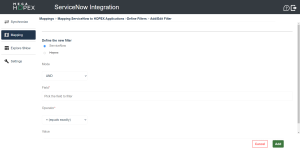
4. Select the Mode.
• AND or OR operators
See Composing multiple filters for further information.• Query (only if HOPEX is the source)
Queries are to be registered in HOPEX first. See Saving an ERQL query for further information. In case you have previously defined filters for a mapping, and you create a query filter, the previous filters will be deleted.
 5. Select the Field.
6. Select the Operator.
7. Select the Value (if necessary).
8. Click Add filter.
A new filter line appears.
Composing multiple filters
You can create several filter lines for the same mapping. Filter lines are composed of AND and OR operators.
The final filter will be in the form of "AND of ORs" - i.e. FilterX AND (FilterY OR FilterZ).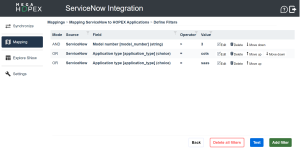
Example: Filtering the sync of Applications with a version number above "3" and either the Application type "cots" or "SaaS".