Viewing the Environment Report File

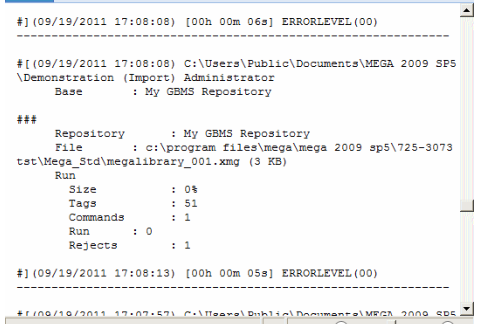
After you have executed backup and restore operations on a repository, you can view the environment report file.
Viewing the environment report file
To open the environment report view window:
1. From HOPEX Administration, connect to the environment.
2. Right-click the environment and select Reports > Open.
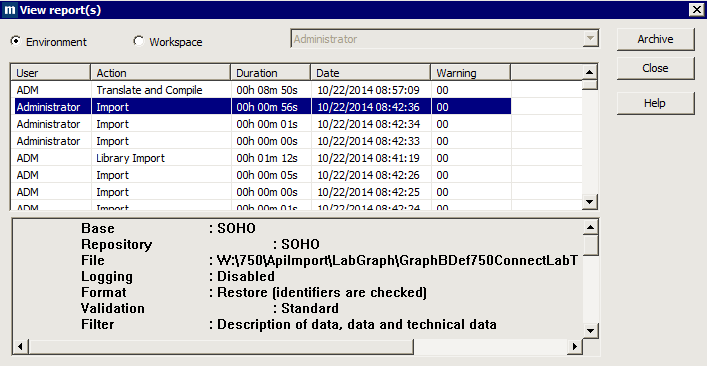
This dialog box also allows you to view report files of each user of the environment. Indicated for each action are:
• User who executed the operation.
• Action executed: dispatch, import, installation, translation, export, derivation, extraction, backup, update, user diagram extraction, user diagram import, repository translation, repository or environment check, repository creation, repository deletion, log initialization, object protection, etc.
• Date the operation began.
• Duration of the operation.
• return code in the Warning column:
• Error level 0: no error.
• Error level 2: minor errors such as attempts at creating already existing objects or links.
• Error level 4: the actions involved nonexistent objects or links.
• Error level 8: a system error was encountered during the update.
• Error level 16: update aborted because of a problem such as insufficient disk space.
when you select an action, the lower frame displays:
• the repository concerned
• the file used
• details of the action.
Copying the environment report file
To copy and reinitialize the environment report file:
A confirmation request message appears.
2. Select Yes.
 You should reinitialize this file (or archive with the network version) from time to time.
Opening the environment report file
To open the "MegaCrdYYYYmm.txt" file with Wordpad:
1. From the explorer, localize the "MegaCrdYYYYmm.txt"" file in the environment folder.
2. Right-click the file and select Open with > Wordpad.