Performing a Pre-assessment
The objective of pre-assessment is to identify those processing activities which have a low compliance level and require a DPIA or require adjustments.
 Before starting your pre-assessment, we recommend to take a look at the compliance levels which were given by the processing activity owner. See Viewing the Initial Compliance Level of a Processing Activity
Consulting Decision-Making Reports
In HOPEX Privacy Management you may use your dashboard to identify compliance priorities and perform an initial assessment. It will enable you to focus on the activities at risk whose compliance needs to be improved.
Your dashboard is pre-populated with 3 different charts in the form of a pie chart. They give an indication of:
• the final compliance level and risk scale after assessment of the processing activity.
• which processing activities have already been assessed through a DPIA
Note that when you select a sector of the pie-chart, the corresponding processing activities are displayed at the bottom.Accessing your dashboard
To access your dashboard:
 From the navigation menu, click Dashboard.The reports of your dashboard take into account all the objects you are allowed to view.
Processing activities by compliance level
This pie chart enables you to view which processing activities are compliant.
The information displayed is obtained through pre-assessments or DPIAs (the result of the most recent of the two is taken into account).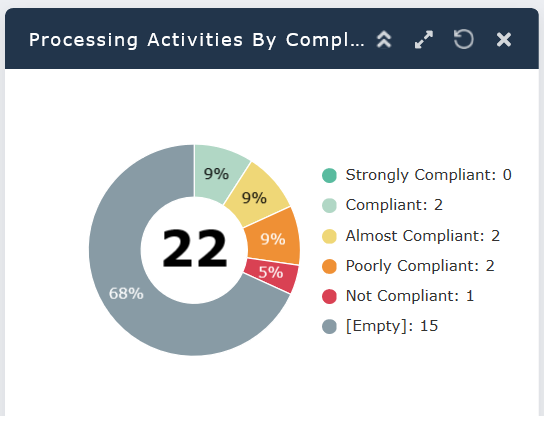
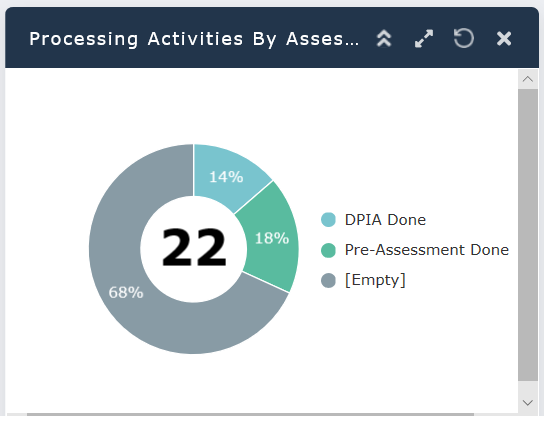
Processing activities by assessment status (DPIA)
This pie chart illustrates the number of processing activities which have been assessed through a DPIA. Those which have not been assessed through a DPIA require your attention.
Processing activities by risk scale
This pie chart shows which processing activities are considered at risk.
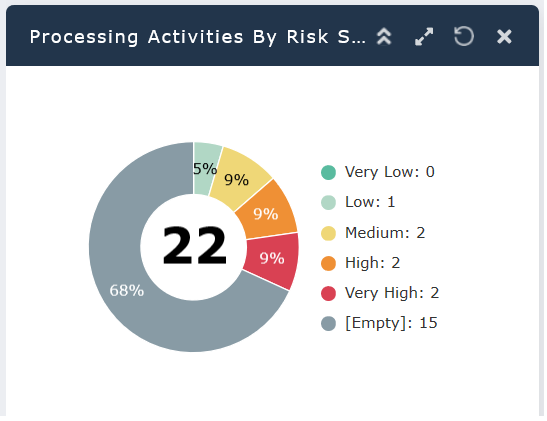 The information displayed is obtained through pre-assessments or DPIAs (the result of the most recent of the two is taken into account).
Performing the Pre-Assessment
Based on the compliance scores made available in the pre-assessment dashboard, you can:
• Give a final validation score
• Define subsequent actions.
To record your pre-assessment:
1. In the Pre-assessment tab of the processing activity property page, unfold the Validation section.
2. Select a value for the Final Compliance level and the Final Risk Level.
These fields are initialized based on the various compliance levels which have been entered beforehand.3. Enter a comment to justify your choice.
4. Indicate the Subsequent Actions to perform:
• Nothing
• Stop Processing Activity
• Notify Supervisory Authority
• Others
5. Once you have entered all the necessary information, click Record Pre-assessment.
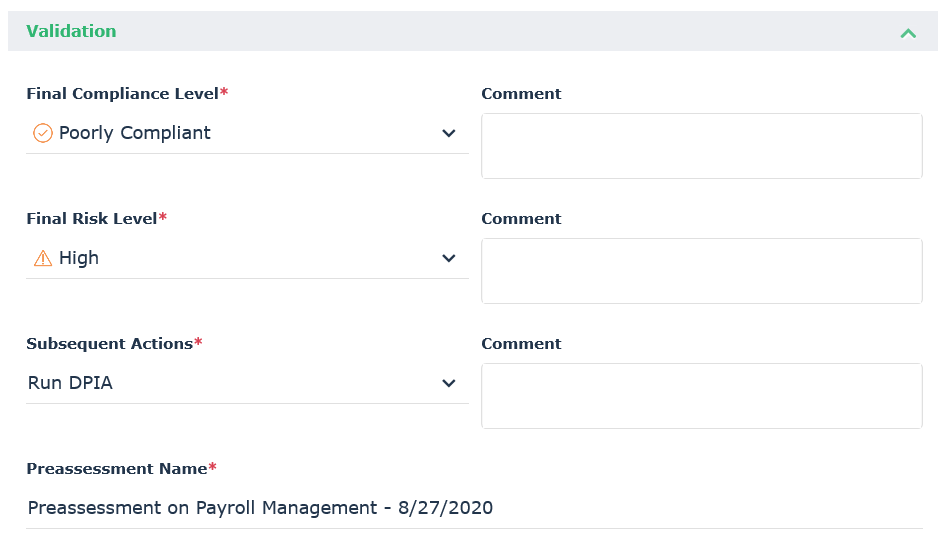 If the final compliance level is poor, you need to perform a DIPA. For more information, see Performing Impact Assessment (DPIA).
Consulting the History of Pre-assessments
When you record the pre-assessment, it is stored in the History section with the data protection values which have been entered.
To access the history of pre-assessments:
In the Pre-assessment tab of the processing activity property page, expand the Pre-assessment History tab.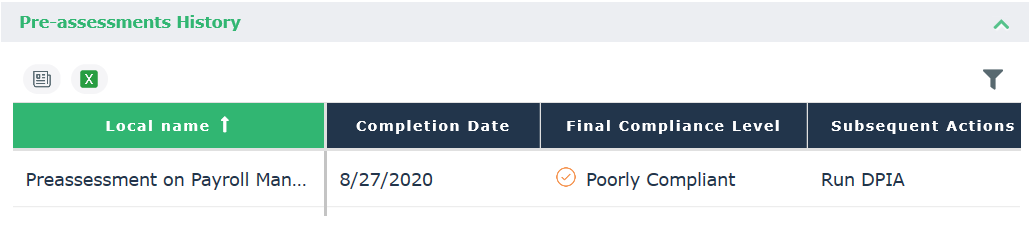
You can consult the property pages of the recorded pre-assessment in read-only mode.