Workflow Transitions
Creating a workflow transition
To create a workflow transition:
1. See Accessing workflow definitions.
2. In the workflow definition diagram, click the Workflow Transition button  in the diagram insert toolbar, then draw a link between the two workflow statuses concerned.
in the diagram insert toolbar, then draw a link between the two workflow statuses concerned.3. In the dialog box that appears, enter the name of the transition and click OK.
The transition appears in the diagram.
You must now define certain properties.
 A workflow transition connects a source workflow status to a target workflow status. A person associated with a workflow transition for a given workflow status can trigger the workflow transition, passing the workflow instance from the current source workflow status to the target workflow status, which then becomes the current status. By this action, the person informs that the operation expected of them has been executed.
Person selection mode
 Participants can also be specified on the workflow status, in the Participation tab.
 The Participants tab of a workflow transition enables definition of how persons are selected at assignment of persons to the next workflow status.
Several values are proposed in the User Selection Mode field when configuring the workflow:
• Some Users: one or more persons can be selected in a list. This is a list of users authorized to trigger the next workflow transition.
• All Users: all the users associated with the corresponding workflow participant are assigned to the next status. No list is proposed.
• One Person: only one person can be selected in the list and assigned to the next status (if you select several persons in the list, you cannot trigger the workflow transition).
Information associated with workflow transition
You can allow the user who triggers the workflow transition to specify additional information.
You can allow the user to:
• add a comment
• specify one or several properties in the form of fields
• attach objects
This information can be made mandatory via permissions. For more details on configuration of permissions, see "Configuring Permissions (CRUDs) on Objects", page 73.To enable entry of additional information on workflow transitions:
 In the properties dialog box of the workflow transition, select the Associated Information tab.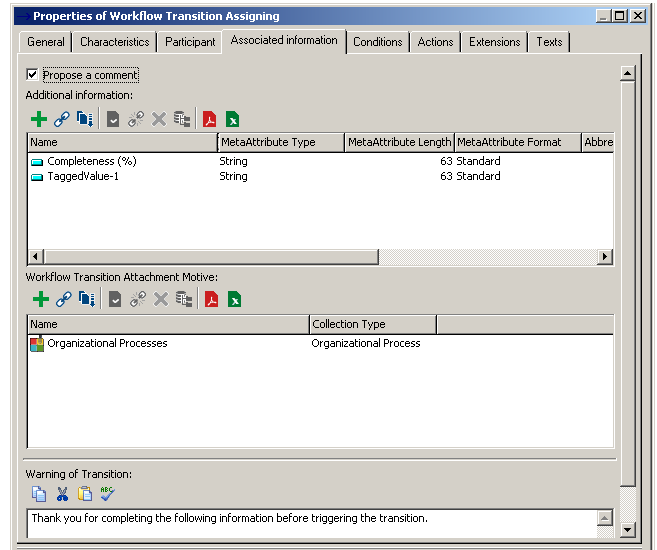
Enabling comment entry
To offer the user the possibility of entering a comment when triggering a workflow transition:
Select the Propose a Comment check box.Adding properties on transitions
To offer the possibility of specifying properties when triggering a workflow transition:
Create TaggedValues in the Additional Information frame.At triggering of the corresponding workflow transition, the dialog box proposed to the user will display the TaggedValues value specified here.
Opening a help tooltip in the transition dialog box
You can display a help tooltip to guide your users at triggering of the workflow transition.
To enter the text to appear in the help tooltip:
Enter the text to be presented to users in the Warning of Transition frame.Transition attachments
To offer the user the possibility of attaching HOPEX objects at workflow transition triggering:
1. Create a motive in the Workflow Transition Attachment Motive frame, for example "Items to provide".
An object attachment motive specifies the reason for which the objects are used in the framework of a workflow transition. 2. Select the motive, and in its properties dialog box select a collection type, which corresponds to a MetaClass.
The same MetaClass can appear in several motives.Motives are used particularly:
• in the framework of sending e-mails
• to list attachments
• to include objects in the form of attachments in the case of documents
MetaClasses that can be the subject of attachments in e-mails are: documents, reports, books, external references.• to associate objects with a notification
For more details on configuration of notifications or e-mails, see:When the user triggers a transition, a dialog box proposes connection of objects to be attached.