Examples
Shape With Fixed Size Object
The aim is to retain the size and position of circle &Circle&, whatever the size of the shape.
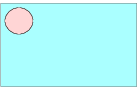
To fix dimensions of the fixed size object:
|
Shape.&Circle&.width=140
Shape.&Circle&.height=140 |
To freeze its position must be added:
|
Shape.&Circle&.top = Shape.top + 20
Shape.&Circle&.left = Shape.left + 20 |
Shape With Calculated Field
|
'---Constant---
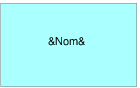
CX_SPACE=10 CY_SPACE=10 '---Shape width--- (at minimum the width required to display text) Shape.width=Max(Shape.width, Nom.width +2*CX_SPACE) '---Fields width--- (field size is readapted to shape size) Nom.width=Shape.width-2*CX_SPACE '---Shape width--- (at minimum the height required to display text) Shape.height=Max(Shape.height, Nom.height +2*CY_SPACE) '---Objects Position--- Nom.hCenter = Shape.hCenter
Nom.vCenter = Shape.vCenter
|
Shape With Pictogram

The pictogram should remain at bottom right and at fixed size.
|
'---Constant---
CX_SPACE = 10 CY_SPACE = 10 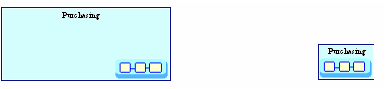 '---Fixed size object--- Shape.&Pict&.width = 2 Shape.&Pict&.height = 1 '--- Shape width --- Shape.width = Max ( Shape.width, Max( Nom.width, Shape.&Pict&.width) + 2*CX_SPACE) '--- Fields width --- Nom.width = Shape.width - 2 * CX_SPACE '--- Shape height --- Shape.height = Max ( Shape.height, Nom.height + Shape.&Pict&.height + 3 * CY_SPACE) '---Objects Position--- Nom.left = Shape.left + CX_SPACE Nom.top = Shape.top + CY_SPACE Shape.&Pict&.right = Shape.right - CX_SPACE Shape.&Pict&.bottom = Shape.bottom - CY_SPACE |
Shape With Calculated Field and Pictogram Juxtaposed

The pictogram should remain at bottom right and at fixed size.
The calculated field &Duration& and the pictogram should not overlap.
'---Constant---
CX_SPACE = 10
CY_SPACE = 10
'---Graphics size---
Shape.&Pict&.width = 70
Shape.&Pict&.height = 35
'--- Shape width ---
Shape.width = max ( shape.width, Nom.width + 2*CX_SPACE ,
Duration.width + Shape.&Pict&.width + 3*CX_SPACE)
'--- Fields width ---
Nom.width = Shape.width - 2 * CX_SPACE
Duration.width = Shape.width - Shape.&Pict&.width - 3*CX_SPACE
'--- Shape height ---
Shape.height =max(Shape.Height , Nom.Height+shape.&Pict&.height
+3*CY_SPACE, Nom.Height + Duration.height + 3*CY_SPACE )
'---Objects Position---
Nom.left = Shape.left + CX_SPACE
Nom.top = Shape.top + CY_SPACE
Shape.&Pict&.right = Shape.right - CX_SPACE
Shape.&Pict&.bottom = Shape.bottom - CY_SPACE
Duration.left = Shape.left + CX_SPACE
Duration.bottom = Shape.bottom - CY_SPACE
CX_SPACE = 10
CY_SPACE = 10
'---Graphics size---
Shape.&Pict&.width = 70
Shape.&Pict&.height = 35
'--- Shape width ---
Shape.width = max ( shape.width, Nom.width + 2*CX_SPACE ,
Duration.width + Shape.&Pict&.width + 3*CX_SPACE)
'--- Fields width ---
Nom.width = Shape.width - 2 * CX_SPACE
Duration.width = Shape.width - Shape.&Pict&.width - 3*CX_SPACE
'--- Shape height ---
Shape.height =max(Shape.Height , Nom.Height+shape.&Pict&.height
+3*CY_SPACE, Nom.Height + Duration.height + 3*CY_SPACE )
'---Objects Position---
Nom.left = Shape.left + CX_SPACE
Nom.top = Shape.top + CY_SPACE
Shape.&Pict&.right = Shape.right - CX_SPACE
Shape.&Pict&.bottom = Shape.bottom - CY_SPACE
Duration.left = Shape.left + CX_SPACE
Duration.bottom = Shape.bottom - CY_SPACE
Column Shape
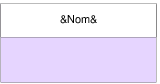
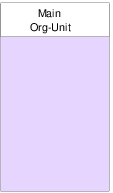
The white rectangle is named &TitleRect&, it should frame the name and retain its fixed size when the shape is elongated downwards. (shape type used to represent org-units in flowcharts)
|
'---Constant---
CX_SPACE=10 CY_SPACE=10 '--- Shape width --- Shape.width=Max(Shape.width,Nom.width+2*CX_SPACE) '--- Fields width --- Nom.width=Shape.width-2*CX_SPACE '--- Shape height --- Shape.height=Max(Shape.height,Nom.height+4*CY_SPACE) '--- Graphics Size--- Shape.&TitleRect&.height=Nom.height+2*CY_SPACE Shape.&TitleRect&.width=Shape.width '---Objects Position--- Shape.&TitleRect&.left=Shape.left Shape.&TitleRect&.top=Shape.top Nom.hCenter=Shape.&TitleRect&.hCenter Nom.vCenter=Shape.&TitleRect&.vCenter |
|||
 |
 |
||
Shape With Title Below
In this example, the calculated field is outside the shape. This is a use case of the "Object" virtual object.

|
'---Constant---
CY_SPACE = 10 '---Shape size--- Shape.width = Shape.default.width Shape.height = Shape.default.height '---Object width--- Object.width = Max(Nom.width, Object.width, Shape.width) '--- Fields width --- Nom.width = Object.width '---Objects Position--- Nom.left = Object.left Nom.top = Shape.bottom + CY_SPACE Shape.top = Object.top Shape.hCenter = Object.hCenter |
Here we must also place the shape object within the Object object.
Note: Object is recalculated after shape code application (smallest rectangle containing calculated fields and Shape).