Customization Examples
Below are examples of questionnaire template customization.
Triggering a Transition at Questionnaire Closing
The standard workflow definition "Assessment Questionnaire" proposes the configuration required to trigger a workflow transition at questionnaire closing. This configuration must however be activated to be effective.
To access this configuration:
 In the "Assessment Questionnaire" workflow definition, open the properties of "To be completed" status.
 The "_Parameterization" text is displayed.
This configuration is activated in certain questionnaire templates available in solutions. If you want to implement it in your own assessment templates, you must activate this configuration.
To activate this configuration:
1. From an assessment template, open the properties of the questionnaire template that interests you.
2. Select the Questionnaire Presentation tab.
3. In the Trigger Transition at Questionnaire Closing field, select the required value.
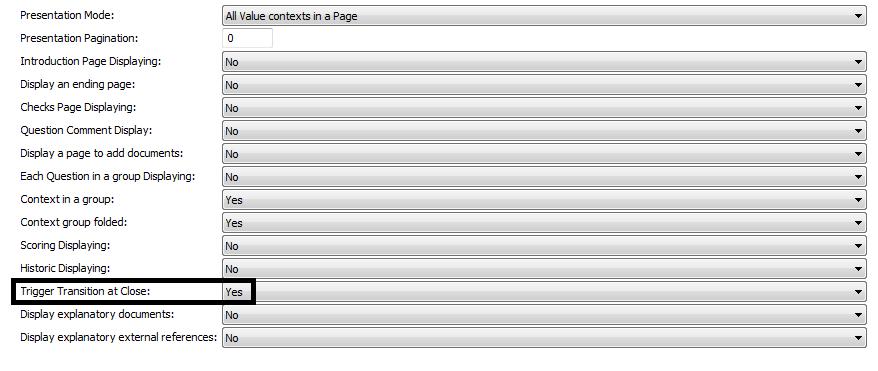
When closing the questionnaire, the transition is not triggered automatically: a message invites the user to trigger it.
Configuring Direct Assessment
HOPEX enables assessment of objects directly without passing via assessment campaigns or sessions.
HOPEX solutions provide assessment templates for direct assessment. You can add questions to questionnaire templates supplied by default.
You can also carry out direct assessments on object types other that those supplied by HOPEX solutions.
Adding questions to a direct assessment template
To add a question to a direct assessment template, you must create a MetaAttribute on a MetaClass.
To create an attribute on a MetaClass:
1. In the properties dialog box of a MetaClass, select the MetaAttribute tab and create a MetaAttribute.
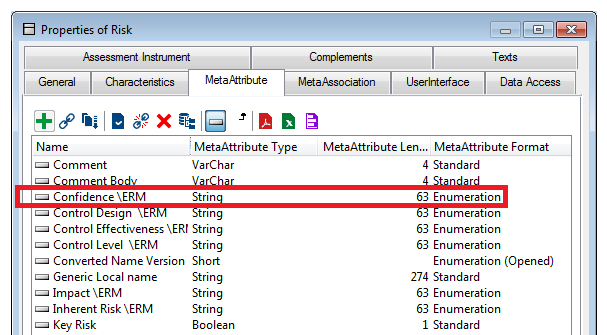
2. In the properties of the MetaAttribute created, select the Characteristics tab, then the Advanced subtab.
3. In the Extended Properties field, select Activate Images.
You can now connect a MetaPicture to this MetaAttribute via the explorer.
Creating a direct assessment template
You can also create a completely new template for your direct assessment.
To do this, see .
You can also:
• create an assessed characteristic corresponding to MetaAttributes created.
• initialize questionnaire templates
 For more details, see Initializing questionnaire templates.
Creating a direct assessment properties page
Having created your direct assessment template, you must create a properties page on the MetaClass concerned to be able to start assessment on an object.
In this way you can create for example an Assessment tab in the properties page of a process (if you have created an assessment template concerning processes).
To create this properties page:
1. Check that the assessment template you have created:
• is connected to the MetaClass concerned
For more details, see Specifying Assessed Object Type.• is "Direct Assessment" type
For more details, see Specifying the Assessment Scope.2. Explore the MetaClass concerned.
3. Right-click the MetaPropertyPage folder and select New.
The MetaPropertyPage creation dialog box opens.
4. In the MetaPropertyPage Type field, select the "Direct Assessment" value.
The MetaPropertyPage is automatically created.
In the properties of an object corresponding to this MetaClass, a new Assessment tab appears. You can carry out direct assessments in this tab.