Applications and Installations
HOPEX enables association of an application with one or several installations. A software installation is supported by a site or server.
 A software installation represents use by a given population of an application over time. The installation is therefore associated with a life cycle which is specified at the time of its creation.
On each installation you can define:
• The Hosting Location: the application is hosted by a data center. An application can be installed in several data centers, depending on the context.
• The Deployment Support: this is the server on which the application is deployed.
• The Usage Context: an installation is associated with one or more usage contexts that allow to specify the Consumer (the user of the application) and the Functionalities offered. See Creating an Installation Usage Context.
 The usage context of an application or an application system enables specification of the list of functionalities offered to each population of users for a given installation over a period of time. Several contexts can be created for a given installation.
Consulting Application Installations
To access the installations of an application:
1. Open the application properties.
2. Click the Installation page.
The list of installations associated with the application is displayed with:
• deployment date
• planned retirement date
To access characteristics of installations of an application:
1. Select an installation.
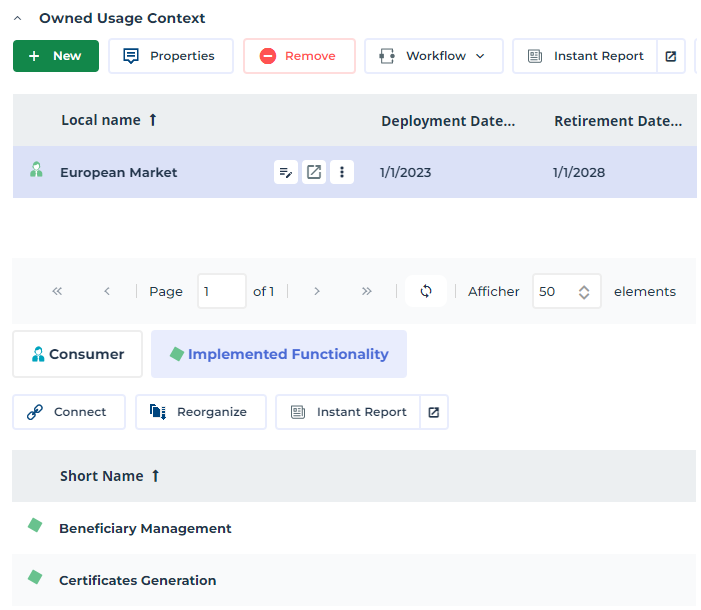
The hosting, deployment support and usage contexts associated with the installation appear in the following sections.
In Usage Context you can define:
• context begin date
• proposed functionalities retirement date
• planned number of users
By selecting a context, you display in the following section:
• The list of functionalities associated with the context (Implemented Functionality)
• The list of users of these functionalities (Consumer)
Creating an Application Installation
Application installation on a data center offers functionalities adapted to different populations of users over a time period.
You can create a first installation at creation of the application, or create it later via its properties pages.
To create an application installation:
1. Open the application properties.
2. Click the Installation page.
3. In the Software Installation section, click the New button.
The Creation of Software Installation dialog box opens.
4. Enter the name of the deployment.
5. Select the Deployment Life Cycle from the drop-down list of this field.
6. Specify:
• Start Date, corresponding to the effective deployment date
• End Date, which can correspond to the application production end date.
7. Select the Freeze the Source Object of the Software Installation to avoid modification of the deployed application.
You cannot modify a locked application. If the application is to be modified, a new version must be created. 8. Click Next.
9. In the Hosting Location section, select the data center that hosts the deployment.
10. In the Usage Context section, specify the usage context of the application, including consumers and functionalities.
11. Click OK.
The new installation appears in the application properties.
Creating an Installation Usage Context
The usage context of an application or an application system enables specification of the list of functionalities offered to each population of users for a given installation over a period of time. Several contexts can be created for a given installation.
To create a usage context of an application installation:
1. Open the application properties.
2. Click the Installation page.
The list of installations associated with the application is displayed.
3. Select the installation that interests you.
4. In the Usage Context section, click the New button.
The Creation of Usage Context dialog box opens.
5. Specify the Life Cycle, Start Date and End Date of the context.
6. Click Next.
7. Click the Connect button to select Consumers specific to the usage context. The consumer of a deployment can be an Org-Unit (such as an organization, department or individual) or a Software Installation
8. Click Next.
9. Click the Connect button to select the functionalities that will be proposed to users in the usage context.
10. Click OK.
The new usage context appears in the properties of the deployed application.
Analyzing Application Life Cycle and Installations
A report enables display in the same Gantt diagram of life cycle steps of the application and its installations.
A second report indicates any conflicts between life cycles of these objects.
To access these reports:
1. Open the properties of the application concerned.
2. Click the Reporting page.
3. In the report list, select IT Portfolio Management then:
• Gantt Chart to view life cycles of the objects
• Gantt chart with conflicts to view any conflicts.
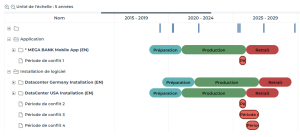
Detection of conflicts report on an application
See also: Creating an Application System Installation.