Drawing up a Data Inventory in HOPEX IT Portfolio Management
In HOPEX IT Portfolio Management you can define business data (Concepts, Terms, etc.) and logical data (Classes, Attributes, etc.).
Business Dictionary
A business dictionary collects and structures a set of concepts that expresses the knowledge of a particular area.
The basic component of a business dictionary is the Concept.
 A concept expresses the essential nature of a being, an object, or a word through its properties and characteristics or its specific qualities.
The word that is associated with a Concept and which depends on language is a Term.
A term is a word or word group, that is used for a specific meaning in a specific context.To create a business dictionary in HOPEX IT Portfolio Management:
1. Click the Data > Business Dictionaries navigation menu.
2. In the edit area, click Hierarchy.
3. Click the icon of the Business Dictionaries folder and click New > Business Dictionary.
4. Indicate:
• the name of the Business Dictionary
• the owner (optional)
• a description (optional)
5. Click OK.
From the Hierarchy view of the business dictionaries you can create concepts and terms, as well as concept domains.
Concept
To create a concept from a business dictionary:
1. In the business dictionary hierarchy, unfold the folder that concerns the concept.
2. Click the business dictionary icon then New > Business Information Building Block.
3. As Object Type, select "Concept".
4. Click Next.
5. Enter the Name of the concept.
6. The Existing Terms section lists terms with the same name as the new concept. You can choose to use an already existing term, or create a new term.
A term is a word or word group, that is used for a specific meaning in a specific context. If a term has already been created with the same name as the new concept, this term is automatically connected and appears automatically in the Term section.
7. In the Definition Text field, enter the text of the concept definition.
8. Click Next to associate an image with the concept or OK to finish.
Concept Domain
A concept domain is a sub-set of elements of a business dictionary that reduces the scope of a field.
To create a concept domain:
1. Click the business dictionary icon then New > Business Information Building Block.
2. As Object Type, select "Concept Domain".
3. Click Next.
The concept domain appears in the Concept Domain folder of the business dictionary.
Concept Domain Map
A concept domain map is a business information urbanization tool. It represents the concept domains of a business dictionary and their dependency links.
Creating a Concept Domain Map
To create a concept domain map:
 Click the business dictionary icon then New > Concept Domain Map.
The map appears under the business dictionary.
Creating the Concept Domain Map diagram
To create the diagram of the concept domain map:
Move the mouse over the map and click the Create a diagram button.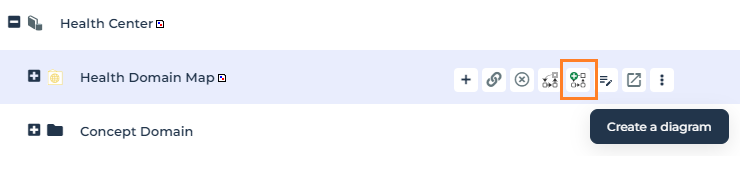
Adding components to the Concept Domain Map
Data dictionary
A data dictionary collects and structures a set of logical data.
Logical data is a realization of business data (concepts). You can define logical data to describe the data used in applications (Data Store) and in flows exchanged between applications.
See also: Defining the Data Used by an Application.
Defining Data Categories
The data category is a mechanism for classifying data such as concepts or classes. You can define one or more categories on the data.
Examples of data classification:
• Sensitive data
• Reference data
• Confidential data
• etc.
Importing the module of Categories
To use the categories, you must import the Privacy Management Content module in your environment.
To import a module in HOPEX, see Importing a Module into HOPEX.
Accessing the list of categories
To access the list of categories:
1. Click the Data > Data Architecture navigation menu.
2. In the edit area, click Hierarchy.
3. Expand the Data Categories folder to see the list of data categories.
Indicating the Category of a Data Item
You can define the category of a data in the data properties.
You can also specify the category when you connect data to an application. See Connecting Data to an Application.
Visualizing the data of a data category
The Data Categories Dendrogram report allows you to visualize where the data of a category is used, for example in the application inventory.
To launch this report:
1. Click the category to open its properties.
2. Click the Reporting page.
3. Select the Data Categories Dendrogram report.
You can also run a report from a portfolio of applications to view data from specific categories used by the applications in that portfolio.
To launch the report on a portfolio of applications:
1. Open the properties of the portfolio in question.
2. Click Reports > Data Category of Portfolio Dendrogram.
Importing Data in HOPEX IT Portfolio Management
Two Excel templates are available for importing and exporting data:
• The "Concept Template" to import a list of terms with their definitions, synonyms, etc. See Importing Business Data from an Excel File.
• The "Data Excel Template" template to import classes, attributes, parts, etc. See Importing Logical Data from an Excel File.
Importing classes can result in the creation of concepts or the linking to concepts that exist under the same names. In this way, business and logical data are automatically linked. This mechanism is used to initialize a business dictionary. It can be configured using the Business dictionary initialization option. For more details, see Initializing a Business Dictionary Using Logical or Physical Data.