Handling Trees
Repository objects are often presented in tree structures.
 Repository objects are often represented as lists of objects of the same type as well, see Handling Lists.
These trees enable to perform actions on objects, as well as drag and drop them from the tree into a diagram.
In trees you can:
• expand/collapse the entire tree by one level
• carry out queries on tree elements.
• add classification folders and sub-folders
Expanding/Collapsing a tree by one level
You can expand/collapse a tree by one level:
• a single branch of the tree
• all of the branches of the tree
To expand the tree by one level:
 Click Expand by one level
  .
.You can expand the tree by one more level until displaying entirely 4 levels.
To collapse the tree by one level:
Click Collapse by one level  .
.Searching for objects in a tree
The search in a tree is performed on its entire content (folder names and objects).
To search for objects in a tree:
1. In the Search field of the tree, enter the characters to search for.
E.g.: enter “banking".
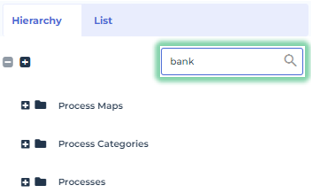
2. Press <Enter>.
The tree displays the elements that contain the searched string in their name.
To delete the search in the tree, in the search field, click  .
.Action on a folder of a tree
On the folder of an object type, you can create an object of the same type.
E.g.: on the Application folder.
To create an object of the same type as the folder:
Right-click the <Object type> folder and select New > <Object Type>.