Actions on an Object in a Tree
In a tree in the browse area, when you click on an object, its properties open to the right of the tree:
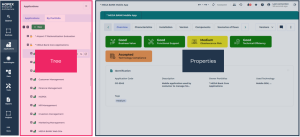
In a full page tree, when you click on an object, its properties open in the edit in place of the tree.
In a tree, other actions on an object are available:
• when you hover the cursor over the object row
• when you right-click the object, in its contextual menu
Actions on the row of an object
In a tree, when you hover the cursor over an object row, a list of buttons pops up:
• in the first part of the list, you can perform common actions on the object
• the second part provides direct access to collaboration features related to the object


Icon | Action on the object | For more details, see: |
|---|---|---|
 | Quick access, to define specific characteristics of the object | |
 | Connect the object to an object type to which it can be connected | |
 | Remove the object from its folder (and/or delete it from the repository depending on cases) | |
 | Open the diagrams describing the object in the edit | |
 | Create a diagram in the edit area | |
 | Display the object properties in the edit , to the right of the tree | |
 | Display the object properties in a new tab | |
 | Add the object to your favorites | |
 | Follow the object to be informed of all the modifications performed on this object |
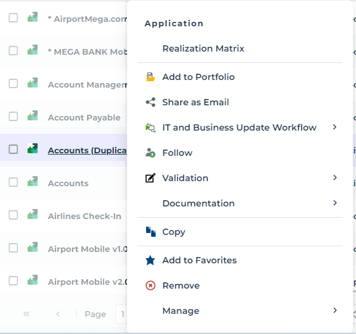
Object pop-up menu
To access all commands specific to an object from a tree:
 Right-click the object row and and in its pop-up menu, select the action.
E.g.: the contextual menu of an application in the Enterprise Architect profile.