Creating a Report
If you cannot find the report you are interested in in the available reports, you can create one using the provided report types.
 See Accessing Reports.See also Accessing embedded reports in an object.
To create a report you must:
• select the report template you want to base your report on.
HOPEX includes predefined report templates specific to each Solution.• (if necessary) enter the report parameters. This consists in defining the report input data.
The report templates of a Solution are accessible from the Reports navigation menu of each Solution.
The report templates with the most reports are displayed first.
A filtering tool helps you to filter report templates and refine the result list. You can:
• search for the name of a report template
• search by filtering only, using one or several filters
• mix search by name and filters
See Adding filters.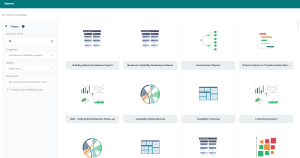
To create a report:
1. In the navigation bar, click Reports.
The list of recently viewed reports is displayed.
2. Click  .
.
.The report templates available in the Solution display as tiles.
3. To narrow down the list, use the filters.
• (If needed) In the Search by name field, enter one or more words from the name of the report template you are looking for.
To search for an exact string, add quotation marks to the string. Without quotation marks, the search results show the reports including at least one of the words entered.• (If needed) Narrow down the search using the Filters available.
See Adding filters.You can add multiple filters and select several values for each filter. The filtering is dynamic and narrows down as you select filters and values.
The filtering results are automatically displayed.
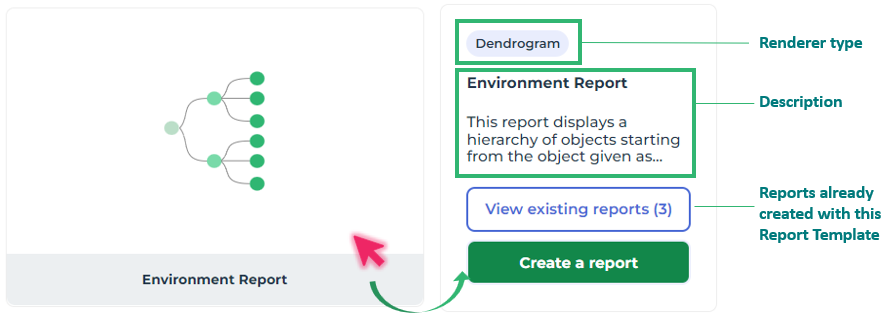
4. Hover the cursor over the tile of the report template of interest.
The tile shows:
• the rendering type of the report (there can be multiple)
• the report description
• access to reports previously created with this report template
For ex.: Environment Report report template.
5. (Optional) If reports of the same type were already created, you can view them before creating another report:
• Click See existing reports.
• Click the name of a report to view it.
• In the breadcrumb, click Reports to come back to the existing reports list.
• If the report template suits your needs, click Create from <Name of report template>. Otherwise click Create from another report template.
6. Click Create a report.
7. (If necessary) enter the required parameters.
8. Click Preview.
9. Click Continue.
If you need to change your parameters, click Back.10. Fill in the information of the report:
• Name of the report: by default <report template name>-n (the -n suffix takes on 1 at each following report based on the same report template.
• Who is concerned by this report? : by default, you are the only person concerned by the report. To add other persons, click Add persons and select the persons using the drop-down list. If you select Tout le monde, the report does not concern a person specifically.
 The persons concerned by a report have a quick access to the report thanks to the report search filter My reports.
• Tags: you can add tags using the drop-down list or enter new tags in the field.
Adding a tag to a report facilitates quick access to it thanks to the search filter Tags.• Description: you can add a description to the report, which displays at the top of the report.
You can update this information anytime, see Managing Report Properties.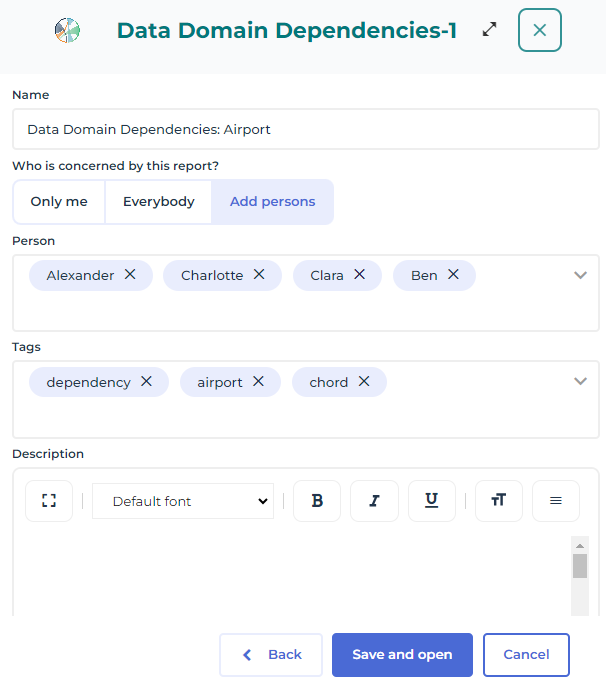
11. Click Save and open.
The report is displayed in full page.
To view the report later, in the report access page, select My reports. Adding filters
In addition to the search by name, the following filters are available:
• Categories
Enables to filter on one or more report categories.
• Objects
Enables to filter on one or more object types displayed in the report.
• Illustrations
Enables to filter on one or more rendering types (see Report Rendering Types).
• Custom report templates only
Enables to consider the custom report templates only, i.e. those not provided at installation.
A search tool is available on each filter for a direct access to the value.
For each filter you can select one or more values. The result must contain at least one of the values of each filter.
To add a filter:
1. Click the filter arrow.
The list of the filter values appears.
2. Select a value.
You can select multiple values.If needed, use the search field dedicated to the filter to access the value.
• Enter characters in the field: as you enter characters the list narrows down.
E.g.: in the search field of the Objects filter, enter: “technology”.
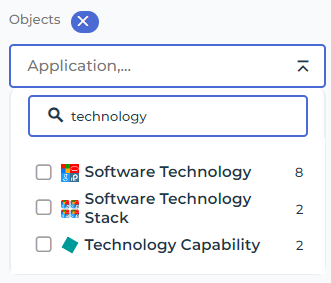
• Select one or more values.
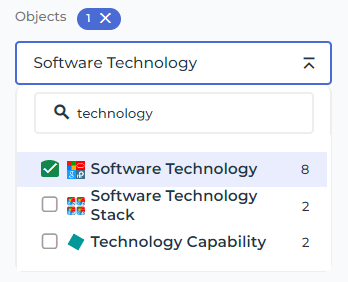
The number of values selected is displayed beside the filter name.
The list of report templates is automatically filtered.
3. (Optional) To fold the filter, click  .
.
.4. (If needed) Add more filters.
The filtering summary is shown above the filtering area:
• the number of filters applied
The number of values contained in each filter is indicated at each filter level.• the number of reports templates resulting from the filtering.