Configuring and Using a Report DataSet
From the Report DataSet property pages, you can perform the following operations:
Making a Report DataSet confidential
A Report DataSet is public by default. It is stored in HOPEX and shared with other users.
You can:
• make your Report DataSet confidential.
• define the persons who have access to your Report DataSet.
To make your Report DataSet confidential:
1. Access the Report DataSet properties.
2. Display the Characteristics page.
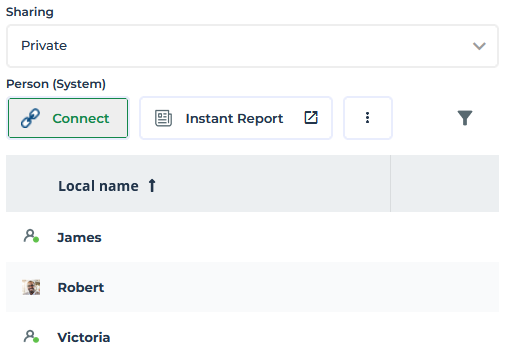
3. In the Sharing field, select "Private".
4. (optional) Click Connect  and select the persons with whom you want to share the Report DataSet.
and select the persons with whom you want to share the Report DataSet.5. Click Connect.
The Report DataSet is confidential and accessible to the persons you have selected.
Updating Report DataSet data
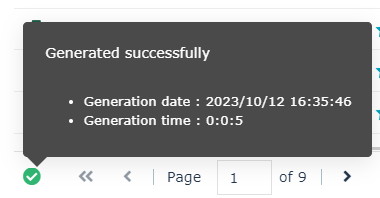
In the Report DataSet properties, the date and time of the last Report DataSet generation as well as the time required for generation are indicated in a tooltip below the Report DataSet.
To update the Report DataSet data:
1. Access the Report DataSet properties.
2. Display the Data page.
The Report DataSet section specifies the date and time of the last Report DataSet generation, as well as the time required for generation.
3. In the Report DataSet section click Generate  .
.
.Hiding Report DataSet column display
To facilitate readability of the Report DataSet, you can hide the Report DataSet columns that you do not want to show.
The data of hidden columns remains included in the Report DataSet. When you launch an instant report, the instant report is performed on all the Report DataSet data.
 You can filter the data in the instant report, see: Managing the Data of a Table-type Instant Report (Report DataSet).
For example, in a Report DataSet with the “Applications - Technologies” definition, you can hide the "Vendor" column.
To hide Report DataSet columns:
1. Access the Report DataSet properties.
2. Display the Data page.
3. In the Report DataSet section, from the drop-down menu of a column title, select Columns, then clear all the names of the columns you want to hide.
Cleared columns are hidden in the Report DataSet.
Restricting the display of Report DataSet rows (display only specified data)
To facilitate readability of the Report DataSet, you can hide the Report DataSet rows whose column cell values are not specified.
The data of hidden rows remains included in the Report DataSet. When you launch an instant report, the instant report is performed on all the Report DataSet data.
You can filter the data in the instant report, see: Managing the Data of a Table-type Instant Report (Report DataSet).For example, in a Report DataSet with an “Applications - Technologies” definition, you can hide the application rows for which the "Vendor" is not specified.
To hide Report DataSet rows:
1. Access the Report DataSet properties.
2. Display the Data page.
3. In the Report DataSet section, click Display filters.
4. Configure filtering.
The rows that correspond to the unspecified values of the column concerned are automatically hidden in the Report DataSet.
Exporting a Report DataSet
You can export a Report DataSet to a CSV format.
By default the list separator for CSV export is the “;” character. This enables to export objects with the "," character in their names.
You can modify this value in the List separator for CSV export (user options: Tools > Data Exchange > Export > Tools/Third Party Format). For Excel-CSV file compatibility, this value must be identical to the List separator option value in your Windows parameters.
To export a Report DataSet:
1. Access the Report DataSet properties.
2. Display the Data page.
3. In the Report DataSet section, click CSV  .
.
.The Report DataSet is exported to a CSV format.