Moving Elements
 While moving elements, if you cannot position them where you want, check that the grid is not active. As the grid can be hidden, but active. See Using the Grid.
Moving elements
You can move one or several elements within the diagram.
To move an element or a set of elements:
1. Select the element or the set of elements.
See Selecting Elements.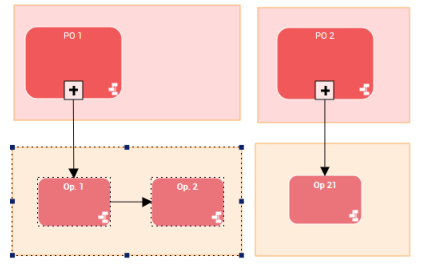
2. Click an element of the selection, avoiding a handle.
3. Hold down the mouse button and move the selection towards the desired position.
When the grid is enabled (see Using the Grid), elements you move are aligned with the grid.If you move the selection outside the display area, the display area automatically scrolls to keep it in view.
If you move the selection outside the diagram area, the required number of pages are automatically added.
Moving nested elements
When an element is positioned inside another element, you can:
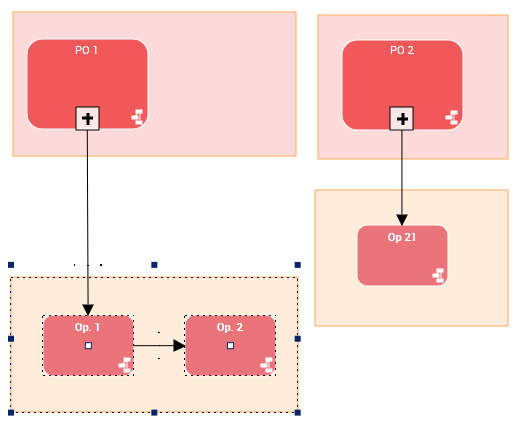
• move the element and all the elements it contains
• move the element without the elements it contains
To move the elements together:
1. Click the element that contains the others.
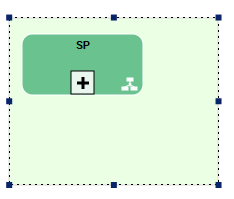
2. Hold down the mouse button and move it.
The element and all the elements it contains are moved together.
To move the containing element without moving its contained elements:
1. Press the <Shift> key.
2. Hold the <Shift> key down and select the containing element.
3. Move it.
The elements that were contained are not moved.
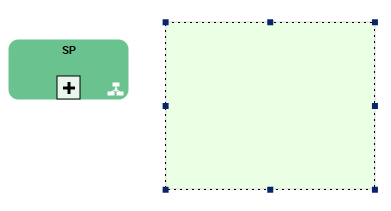 This procedure can be useful, for example, to move a swimlane with or without its attached objects.
Moving elements outside the display area
It may happen that you move elements outside the display area.
To move the display area while moving elements:
1. Select the elements to be moved.
2. Click the selection.
3. Hold down the mouse button and drag the cursor to the visible edge.
4. Keep the cursor stationary a few moment.
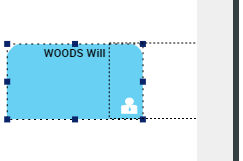
The display area starts scrolling automatically.
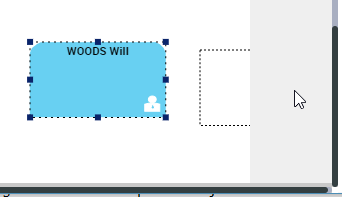
5. Release the mouse button once the required position is reached.
If the position is outside the diagram area, a page is automatically added, see Moving elements outside the diagram area.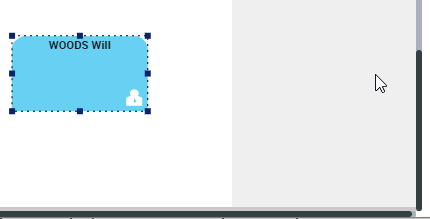
Moving elements outside the diagram area
When you move elements outside the diagram area, one or several pages are automatically added so as to include all of the elements.
To move elements outside the diagram area:
1. Select the elements and move them.
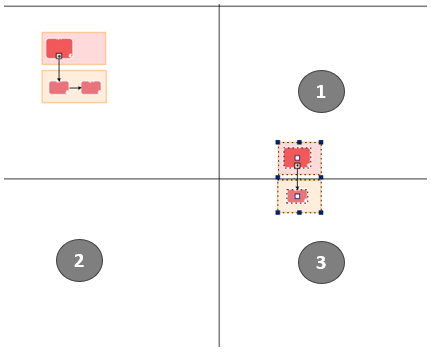
E.g.: move both of the objects and both of the shapes to the bottom right.
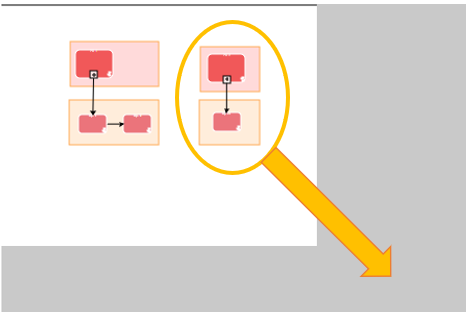
As soon as you move outside the diagram area, it enlarges the diagram area.
2. Release the selection where you want the selection to be.
Required pages are automatically added.
E.g.: in this example three pages are added.