Creating Diagrams
To create a diagram, you can initialize it from:
• the object properties
• the object in a list or a tree
Subsequently, you can:
• insert objects
 See Objects in a Diagram.
• insert shapes
See Graphic Elements.• insert text
See Texts in a Diagram.• organize objects and shapes
See Element Handling.Creating a diagram from an object properties
To create a diagram from an object properties:
1. Access the object properties.
2. Open the Diagrams property page.
3. Click the Create a diagram tile.
4. Select the type of diagram you want to design.
Hover the cursor over the tiles for more details on the specificities of the diagram type in question.5. You diagram is initialized and opens in edit mode.

 Certain types of diagram can only be created once per object (e.g.: one single process diagram can be created from a process).
Create a diagram from an object in a list or tree
In most of the Solutions, object lists contain a Diagrams column. It facilitates the access to an object diagrams or to the creation of a diagram.
As far as trees are concerned, they can contain icons representing a shortcut to the creation of a diagram. These icons appear when hovering the cursor of the object name.
To create a diagram from a list:
1. Access a list of objects.
E.g.: access a list of applications using the navigation menu.
2. In the Diagrams column, click the number of existing diagrams.
3. Click the Create a diagram tile.
4. Select the type of diagram you want to design.
5. You diagram is initialized and opens in edit mode.
Your object might not be described by any diagram yet. In that case, the Create a diagram  icône directly displays in the column. Click it to lauch the creation wizard.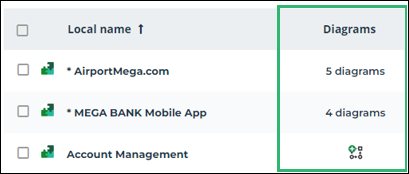
To create a diagram from a tree:
1. Access a tree of objects.
E.g.: a tree of applications in the Browsing area.
2. Hover the cursor over the object name.
3. Click Create a diagram.
.4. Select the type of diagram you want to design.
5. You diagram is initialized and opens in edit mode.