Data Domains and Logical Data Domains
Data domains and logical data domains are used to define a logical data structure made up of classes and class views.
• The logical data domain is used to describe data stores (internal or external) of logical application systems.
• The application data domain is used to describe the data stores of software (Application system, Application, Application service or Micro Service).
 For more details on how to use data domains in an application architecture, see Modeling Applications and System Architectures.
Both are owned by a package and can reference objects held in other packages.
You can define the access mode (CRUD) to the objects referenced by a data domain by integrating them as components of the data domain.
A corresponding physical structure can be defined via a physical data domain. It is made up of tables and table views. See Modeling Databases.Creating a Data Domain
You can create a data domain from the data dictionary it describes.
To create a (logical) data domain in HOPEX Data Governance:
1. Click the Architecture navigation menu then Data Dictionaries.
In HOPEX Data Architecture, click Data Dictionaries > Hierarchy View.2. In the edit area, expand the Data Dictionaries folder.
3. Right-click the data dictionary and click New > Data Domain or Logical Data Domain.
The data domain appears in the tree.
The Data Domain Diagram
Data domains can be described by a diagram.
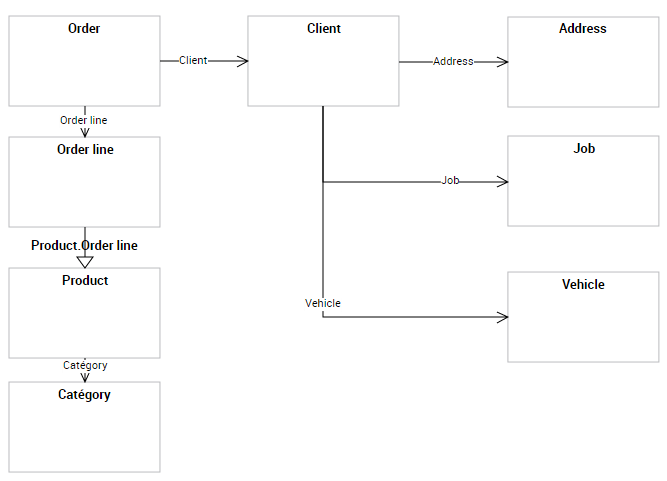
A data domain diagram is a structure diagram which defines classes and their relationships in a Whole/Part formalism in connection with the subject of the data domain described.
You can connect one or more data domain diagrams to a data domain, according to what you want to describe.
Example of diagram
The following data domain diagram represents a data structure relating to Orders; it describes classes and their relationships in a Whole/Part formalism.
Creating a Logical Data Domain Diagram
To create a data domain diagram from a logical data domain:
1. Right-click the data domain and select New > Diagram.
2. Select the diagram type Data Domain Entity Diagram.
3. Click OK.
Adding an object to the diagram
In the data domain diagram, you can add a new object or connect an existing object.
The objects visible in a data diagram are not automatically linked to the data domain. A command allows you to define the objects as components of the domain. See Adding a Component to a Data Domain.
Adding a class
To add a new class to a diagram:
1. In the diagram insert toolbar, click Class, then click in the diagram.
The Add A Class dialog box appears.
2. Enter the name of the class and click Add.
Add a data view
To add a new data view to a diagram:
1. In the diagram insert toolbar, click Data View, then click in the diagram.
The Add Data View dialog box appears.
2. Enter the name of the data view and click Add.
3. The editor view appears. It is used to define the components of the view. See Logical data views.
Adding a Component to a Data Domain
You can connect objects to a data domain through components. A component references an object (class or class view) and defines the type of access to the object in question (read-only, modification, deletion, etc.).
The data domain is attached to the package; objects directly created from components are automatically connected to the package of the data domain.
You can create a component from an object in the diagram or using the properties of the data domain.
To create a component from an object of the data domain diagram:
 In the diagram, right-click the object in question and select Add to (name of the data domain).
The name of the component created appears in the properties of the data domain. By default it has the name of the object that it references.
Defining the access mode to the component (CRUD)
You can specify the access rights to each component of a data domain by defining the CRUD of the component in question (Create, Read, Update Delete).
To define the access mode to the object in the data domain:
1. Open the properties window of the data domain.
2. Select the Components page.
3. Select the line of the component in question.
Commands are added, including the CRUD button.
4. Click this button.
5. In the window that appears, select or deselect the check boxes associated with the actions: Create, Read, Update, Delete.
The content of the Data access column is calculated automatically according to the selected actions. This result appears in object form in the diagram associated with the data domain.