The HOPEX Data Governance Desktop
HOPEX Data Governance Home Page
The HOPEX Data Governance solution home page consists of the following sections.
• The header presents some information of general interest.
 These can be defined in the Administrator's Administration > Methodological Domains menu.
• Our Objectives: indicates the main strategic themes of interest to solution users.
• Help: points to user documentation and the user community.
• The Quick Access provides useful shortcuts:
• Recently viewed: last objects and diagrams accessed by the user
• Favorites: user favorites and shared favorites
• Actions: quick access to the creation of architecture elements.
• My favorite report: displays the user-defined or administrator-predefined report, which can be used as an entry point into the repository.
Scope Indicators
The My Scope section provides useful indicators on application assets. Clicking the indicator takes you to all the corresponding objects. There are three groups of indicators:
• Governance
• Compliance
• Inventory
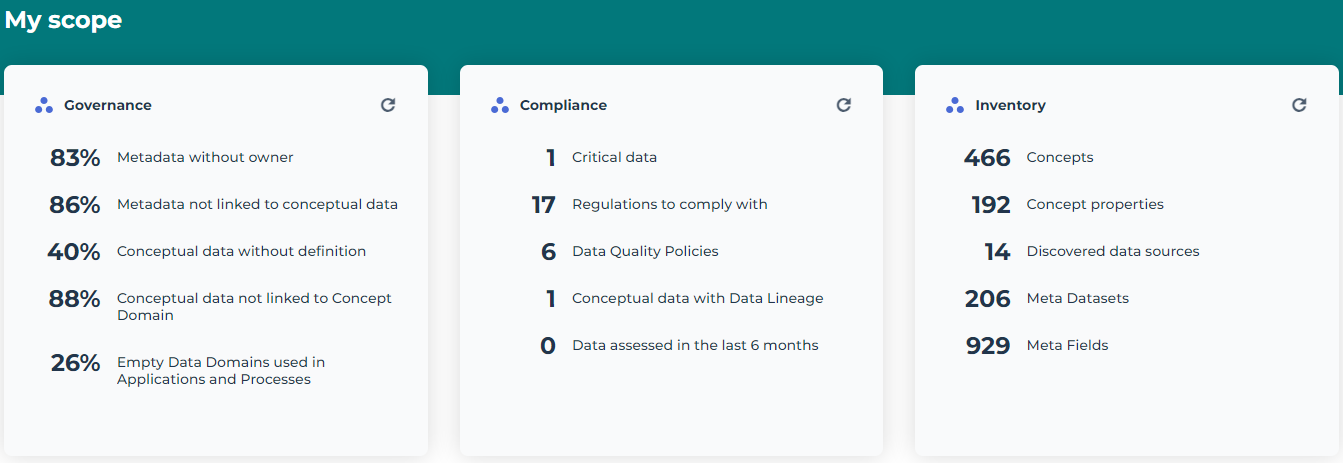
Governance
This tile lists the following objects:
• Metadata without owner: displays metadata without holder container.
The holder container of a metadata can be a data store or a package. It is visible in the Characteristics page of its properties.• Metadata not linked to conceptual data: indicates the number of metadata items not associated with a concept at business level.
You can initialize a business dictionary from metadata. This consists of creating in a business dictionary the concepts and information items that correspond to the physical metadata and the metadata fields, and thus establishing a realization link between these objects. See Initializing a Business Dictionary from Meta Datasets.
• Conceptual data without definition
The concept definition is visible in the Characteristics page of its properties.• Conceptual data not linked to Concept domain
 A concept domain is a sub-set of elements of a business dictionary that reduces the scope of a field. It is described in a concept diagram.
 • Empty data domains used in Applications and Processes
To define which data are used by which processes and applications, see Use of Data by the Information System.Compliance
This tile lists the following objects:
• Critical data
• Regulations to comply with: lists the regulatory constraints associated with the data.
• Data Quality Policies
Data quality policies are guidelines that describe what criteria data must meet to be useful and reliable within an organization.See Data Quality.
• Conceptual data with Data Lineage
See Data Lineages.• Data assessed in the last 6 months
Inventory
The Inventory tile displays the number of following objects:
• Concepts
• Concept properties
• Discovered data sources
• Meta Datasets
• Meta Fields
Displaying the Working Environment of an Enterprise
A repository can be partitioned into Enterprises.
An enterprise a business project, which establishes the goals to be achieved as well as the strategic action plans used to achieve these goals. It comprises transformation stages in which the capacities or deliverables to be reached are defined.
When associated with a working environment, enterprises are entry points into the Data Management desktop; the environment provides privileged access to the objects held and used by the enterprise in question.
Creating an enterprise and its working environment
The creation of an enterprise and its working environment is performed by the functional administrator.
To create an enterprise in HOPEX Data Governance:
1. Click the navigation menu, then Environment.
2. In the navigation pane click Standard Navigation.
3. In the edit area click the Enterprises tile.
4. Click New.
5. In the creation wizard that appears, enter the enterprise name.
6. To create the enterprise environment at the same time, select the "Information Architecture” environment.
7. Click OK.
If no environment was created at the same time as the enterprise, you can create it later.
To assign a working environment to an existing enterprise in HOPEX Data Governance:
1. Select the project or the enterprise concerned to display its properties.
Click the Properties button of the edit area if properties are not displayed.2. Select the Working Environment Assignment page.
The page can be hidden by default. 3. Click New.
4. Rename if needed the new environment and select the “Information Architecture” type.
5. Click OK.
You can also create the working environment if an enterprise during the enterprise creation. See also: Enterprises and libraries.