Concept View
A concept view enables representation of the semantic scope covered by a business object. A concept view is based on the selection of several concepts specific to the view.
An editor allows you to create and visualize business views and their components.
 On the same principle, the Data View can be used to navigate from Classes or Entities. For more details, see Logical Data View.
Creating a Concept View
To create a concept view:
1. Right-click the name of the concept and select New > Concept view.
The concept view creation wizard appears.
2. Enter the Local Name.
3. The Existing Terms field lists terms with the same name as the view.
 A term is a word or word group, that is used for a specific meaning in a specific context.
4. In the Definition Text space, enter the text of the definition of the view and click Next.
5. To specify the source concept of the concept view, click New.
6. In the dialog box that appears, enter:
• the MetaClass concerned by the view (concept, state concept or event concept)
• The reference concept of the data view
7. Click Add.
8. Click OK to close the concept view creation wizard.
The new concept view appears in the list.
Defining the Concept View Content
Displaying objects in the view
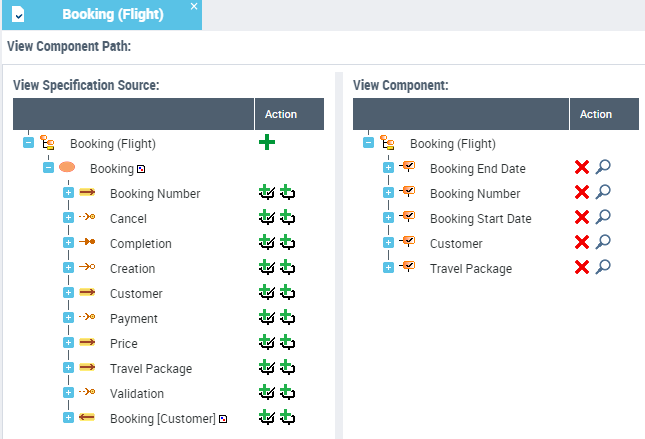
The view editor is made up of a number of parts:
• the left part presents all the source concept components held by the view, as defined in the data dictionary
• the right part presents the concept components that will be kept for the concept view created
• the buttons in the Action column are used to add the components to the concept view.
Adding a source object to the concept view
To add a source object to a concept view:
1. Open the concept view.
2. On the source object side, under the Action column, click the  button.
button.3. In the dialog box that appears, indicate:
• the MetaClass concerned by the view (concept, state concept or event concept)
• The reference concept of the data view
4. Click Add.
Once the source concept is defined, you can select the components of this concept - or the concept itself - to be added to the concept view.
Adding a component to the concept view
Using the source objects in the view, you can define embedded components and referenced components.
An embedded component is used to bring all the information making up the object into the view. A reference component references only the object in the view.
To add a component to the concept view:
1. In the tree on the left, select the component that you want to add to the view.
2. Click Add a View Inclusion Component .
The component added appears in the tree to the right.
You can Add a referenced component in the same way.A check mark appears in front of the objects embedded in the view, as opposed to referenced objects.
The views are then accessible in a report. For more details, see Report DataSets.
The View Report
The view report provides a report on a concept view and its components.
To generate a view report:
1. Click the navigation menu, then Reports.
2. In the navigation pane click Description Reports.
3. In the edit area, click the View Report tile.
4. In the View field, select the view in question and refresh the report.
Report parameters
This consists of defining report input data.
Parameters | Parameter type | Constraints |
|---|---|---|
View | View | Mandatory. |
Sub-view | yes or no | Yes by default |
Justification | yes or no | Yes by default |
Depth level | Short |
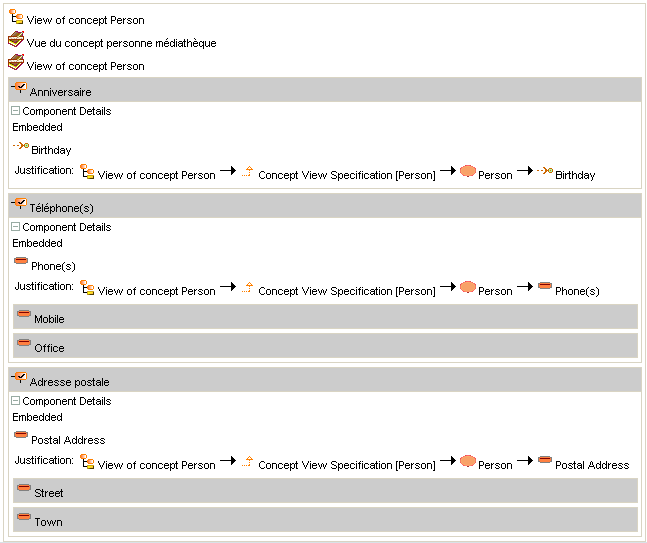
Report example
The following example show the elements in the view based on the "Person" concept.